✨ Welcome to GAZAI! What would you like to create first?
Got a character, a story, or a graphic in your head, but not sure which button to press first? Think of this article as your creative crossroads! Start by asking yourself "what do I want to make right now?", then pick the path that suits you.
On GAZAI, you can turn text into images, arrange your materials on a canvas, bring pictures to life as video, and find just the effect you need in our popular AI tools. There's no need to learn everything at once. Finish one small piece first, then explore at your own pace!
🧭 Four ways in: choose your direction
- Want to arrange images and text into a finished piece →My canvas: Set up your own creative space, organize your materials, adjust the composition, and make posters, covers, or social media images.
- Have an idea and want to see it as a picture →Image generation: Describe your subject, scene, and style, and let AI draw a first version.
- Want your character or scene to move →Video generation: Start from text, or use an image with a supported model, to make a short clip.
- Want a specific effect fast, or some fresh inspiration →AI Tools: Switch to the "Popular" tab to see what everyone's using, or search for the effect you have in mind.
Still deciding? If you have an idea but no materials, generate an image first. If you already have an image and want to add a title or layout, open a canvas. For anything that moves, head to video generation. And if you're just curious what AI can do, browsing the popular tools is a great place to start!
🎨 Route 1: My canvas, for combining materials into a finished piece
This route is for you if:You already have photos or illustrations and want to add a title and tidy up the layout for a poster, cover, or event graphic, or you want a creative space you can keep coming back to and editing.
Think of the canvas as a work table, with images, text, and frames as the materials on it. Put things on the table first, then move, resize, and reorder them until each one sits in just the right place.
Try this your first time:
- OpenMy canvas: After logging in, create a new canvas and give it a name you'll easily find later.
- Add an image and a one-line title: "One image plus one line" is all you need to practice basic layout.
- Use a frame to mark the area you want to export: Move the image and text to where you want them.
- Download the image from the frame: Take a look afterward to check that everything you wanted is inside.
Follow along with these tutorials:
- Create your first creative space on the canvas: Create it, name it, and reopen it, so your work table is ready to go.
- Add text, images, and frames to your canvas: Get to know the basic building blocks of layout, and practice adding materials and adjusting their position.
- Download a frame as an image: Learn to set the export area, format, and size, then take your finished piece with you.
🖌️ Route 2: Image generation, for turning an idea into a picture
This route is for you if:You don't have materials yet, but you already picture a subject, a scene, or a style you love, and you'd like to make a character image, an illustration, or a rough idea sketch.
A clear description is all you need to begin. Your first prompt doesn't have to be long, and you don't have to adjust every setting at once. Choose a model, generate an image from a simple description, and see which parts match what you imagined.
Try this your first time:
- OpenImage generation: Choose an image model.
- Enter a prompt: For example, "An orange cat sitting by the window, warm afternoon light, Japanese hand-drawn illustration."
- Check, then generate: Look over the model, settings, and points required, run it once, and wait for the result.
- Review and download: See whether the subject, scene, and style are right, then download the version you like. When you want to adjust something, change one thing at a time, such as switching afternoon to night, and compare the two results.
Follow along with these tutorials:
- Generate your first image on the image generation page: Walk through a complete first generation, from choosing a model and writing a prompt to viewing the result and downloading it.
- Add reference images to explain your idea more clearly: When you have a sketch or reference material, learn to say clearly what to keep and what to change.
Image done? What's next?To add a title and layout, download it and bring it into a canvas. To make it move, go to video generation and choose a model that supports image input.
🎬 Route 3: Video generation, for setting your picture in motion
This route is for you if:You'd like a character to wave, a breeze to blow through a scene, or an idea to become a short moving clip.
You can start from a text description or use an image as your starting point. Each model supports different materials and settings, so choose a model first, then fill in the fields you see on screen.
Try this your first time:
- OpenVideo generation: Choose a model first.
- Start with one simple action: For example, "An orange cat sitting by a sunny window slowly lifts one front paw and waves, its tail swaying gently, fixed camera."
- Want to use your own image?Choose a model that supports image input, then add your reference material.
- Check the settings, then generate: Look over the duration, aspect ratio, resolution, and points required, then run it once. When it's done, play the video and see whether the motion and camera match what you pictured.
Follow along with these tutorials:
- Generate your first video on the video generation page: Start with the orange cat's small action and learn about prompts, model settings, and checking your results.
- Guide Seedance with reference images, videos, and audio: When you want more precise control over how your materials are used, practice with multiple kinds of reference input.
🪄 Route 4: Popular AI tools, for trying out a little helper
This route is for you if:You want to process materials you already have, apply a specific effect, or quickly make a presentation card, but you aren't sure which tool to start with.
Go toAI Toolsand switch to the "Popular" tab to see the tools and examples people are enjoying lately. The list changes over time, so just pick an effect that interests you right now. If you already know what you want to make, search by keyword, then narrow things down by category or output type.
Try this your first time:
- Open AI Tools and switch to "Popular": If you have something specific in mind, search for that effect directly, such as "Remove Background" or "Presentation".
- Click a tool card that interests you: Read the description and examples first to see whether it outputs images, video, or text, and what materials you need.
- Fill in the fields and click "Execute" once: Add images or write a prompt as the tool asks, check the settings and points required, then submit.
- Check your result in "My Generations": If it looks good, download it. If it's still processing, give it a moment. There's no need to submit again.
Want to follow along and make something? Try "Create a PPT and infographic cards":Prepare a topic and three key points, let AI generate a card, then download it and drop it into your presentation. To add more text or materials around the card, you can continue on a canvas.
Follow along with these tutorials:
- Find the right effect in AI Tools: Learn to use search, category filters, and the popular list to find the tool you need for the job.
- Make your first presentation card in AI Tools: Use a prompt you can adapt right away, and practice setting the aspect ratio and resolution, generating, and downloading. The result is an image, so remember to check the text inside it before using it.
🗺️ Starting point chosen? Link features into your own creative route
The four entry points can hand off to one another. Finish one small step, then decide on the next, and you won't get swamped by options.
- Make a character poster:Generate a character image → download it → add the image and a title on a canvas → download the finished piece from a frame.
- Bring an illustration to life:Generate or prepare an illustration → choose a model with image input in video generation → add the image and a description of the motion → play it and check the result.
- Make a presentation card:Find a card tool in AI Tools → organize your topic and key points → generate it and check the text → download it for your presentation, or take it to a canvas for more layout work.
🎒 Before you set off, get these three things ready
- Log in to your account:You'll need to log in to generate or save your own content. No account yet?Log in, sign up, and recover your passwordwill get you sorted in no time.
- Take a look at your points:Different models, tools, and settings use different amounts of points, so glance at the cost on screen before each submission.
- Start with something small:One image, a simple card, or a video with a single action all make great first practice. Add details once you've finished.
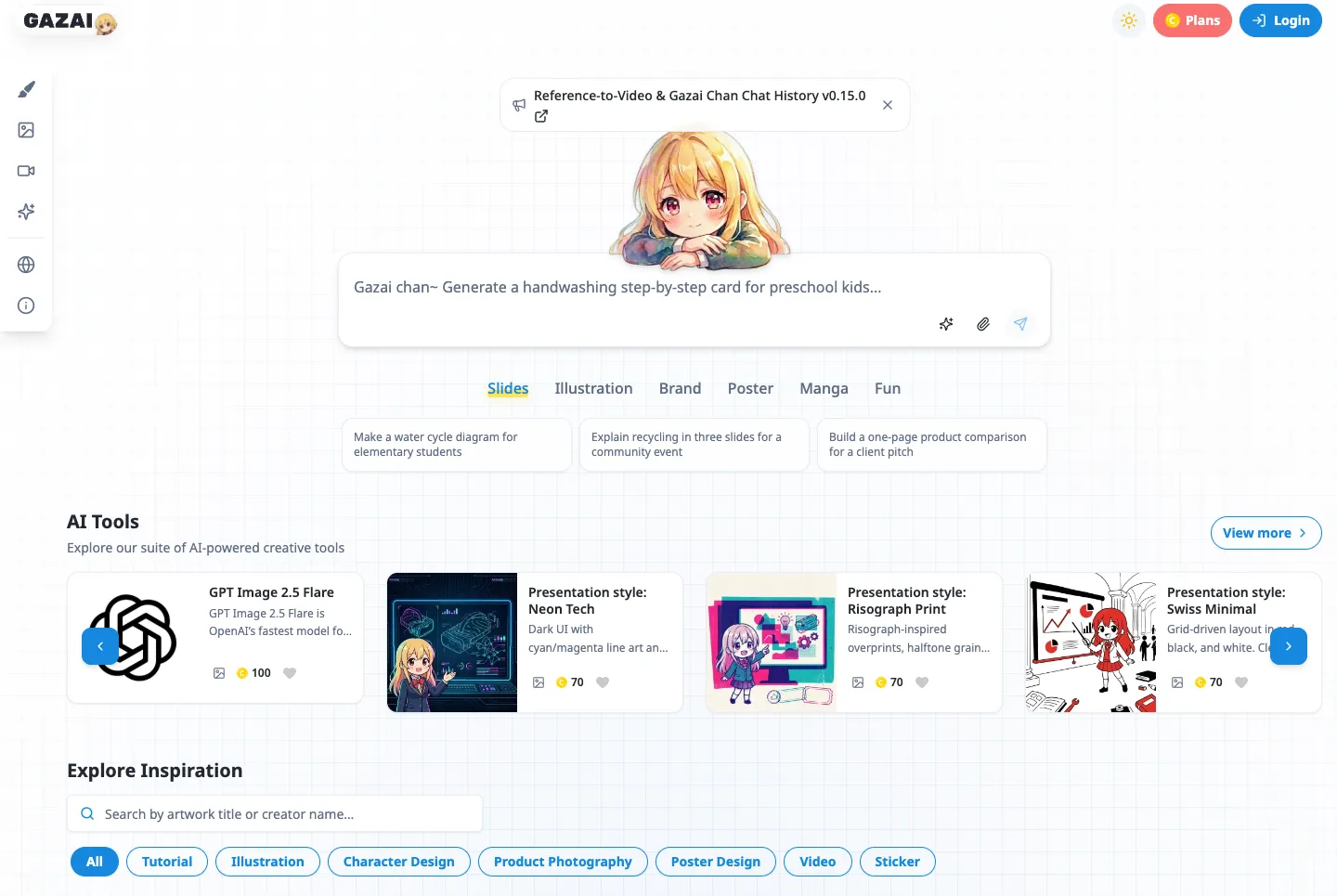
You can find the navigation on theGAZAI home page(on a phone, open the menu first), or jump straight to your route using the feature links above.
🖼️ Compare with your screen
🛠️ Stuck? Check here first
- You're asked to log in: Some tools require an account. Just log in and carry on.
- You can't find a feature: Available options can vary by account, model, and version. First check which page you're on and which language you're using.