✨ What will we play with?
"An orange cat sitting by the window, warm afternoon light." One sentence is all it takes to start creating! Pick a model, describe what you imagine, and let GAZAI draw your first version.
🚀 Follow along, step by step!
This guide uses the same sentence from start to finish: "An orange cat sitting by the window, warm afternoon light, Japanese hand-drawn illustration." First we'll create an image, then tweak the description to see what changes!
1. Log in and open "Image generation"
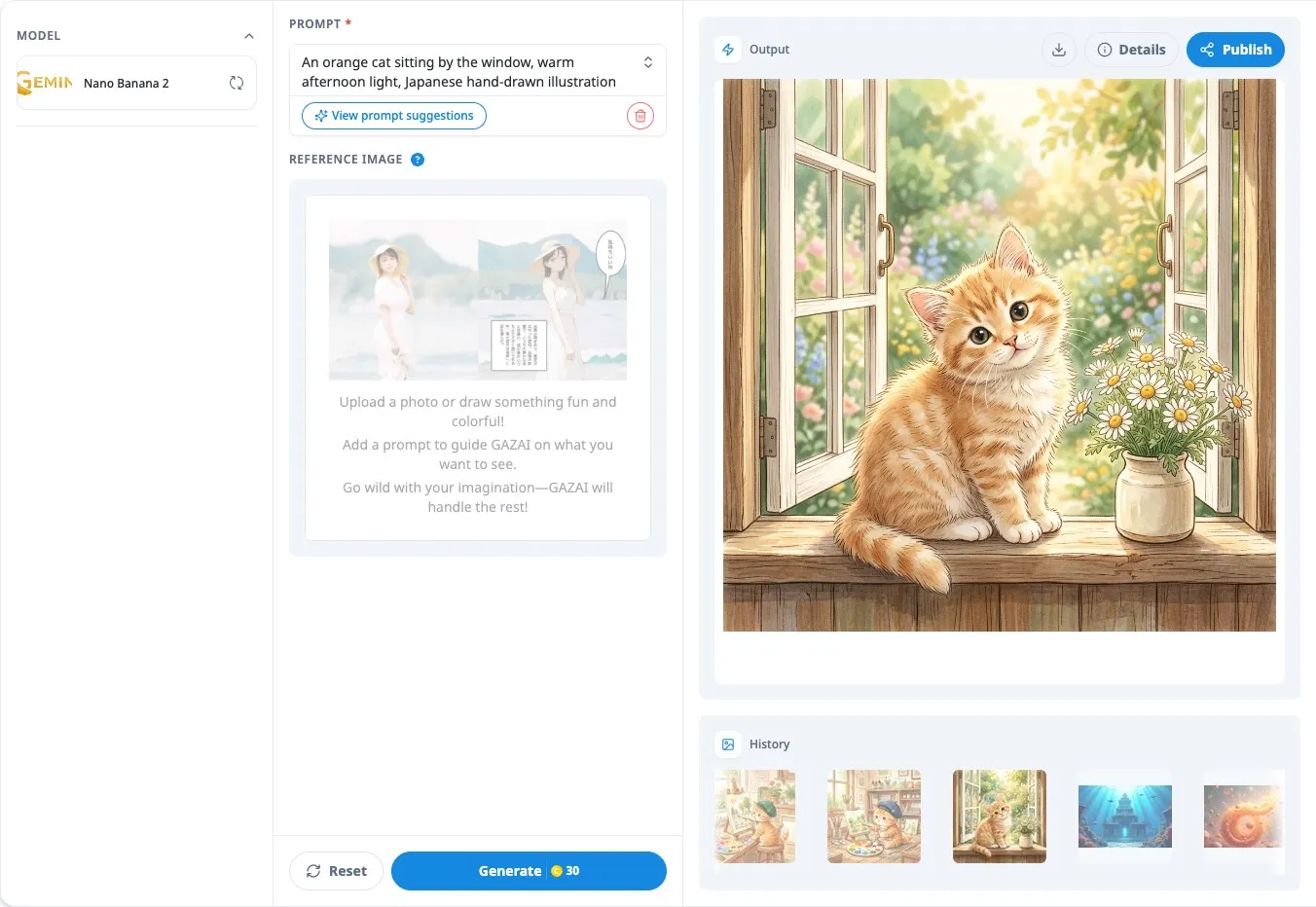
After logging in to GAZAI, choose "Image generation" from the navigation. On a computer, the screen has three areas: pick a model on the left, write your prompt in the middle, and see "Output" and "History" on the right.
2. Pick an image model
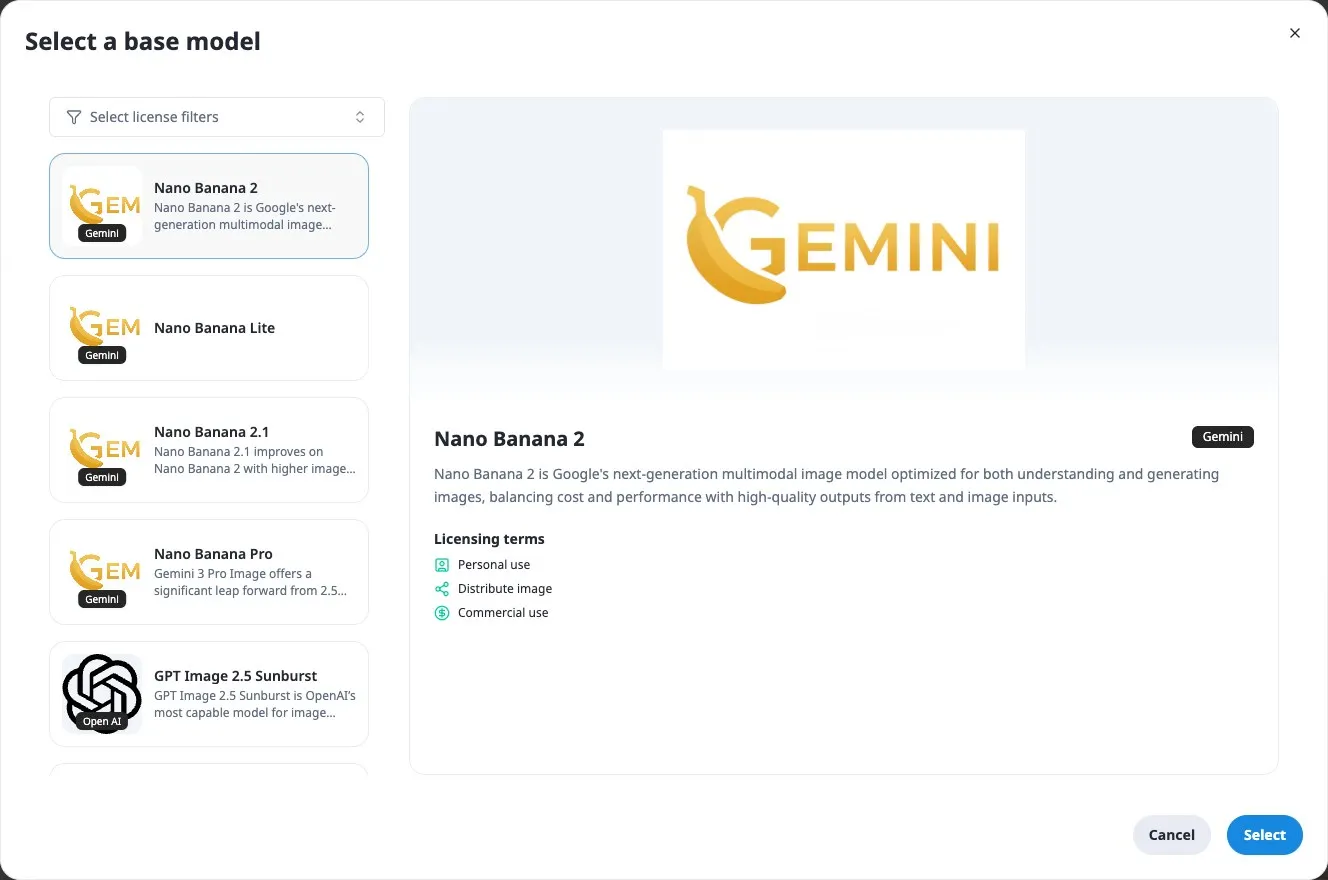
Start in the "Model" area on the left and pick a model. Once you've chosen, check that the card shows the one you wanted. Each model offers different settings, such as reference images and sizes, so just go by the options you see on screen!
For your first try, we suggest sticking to one model and leaving the settings at their defaults. That makes it easiest to see how your prompt affects the result. We're only practicing text generation this time, so there's no need to upload a reference image. If your own material is already in the reference image area, remove it so it doesn't affect the orange cat.
This guide usesNano Banana 2: click the model card to open "Select a base model", choose Nano Banana 2, then click "Select" in the bottom-right corner.
3. Write the orange cat prompt
Click the "Prompt" field in the middle and replace the sample text with this sentence:
This sentence has four key parts:
- Subject:an orange cat.
- Scene:sitting by the window.
- Lighting:warm afternoon light.
- Style:Japanese hand-drawn illustration.
It doesn't have to be long. Just be clear about what to draw and where it is. If you use "View prompt suggestions", read the prompt again afterward to make sure it's still the orange cat scene you want.
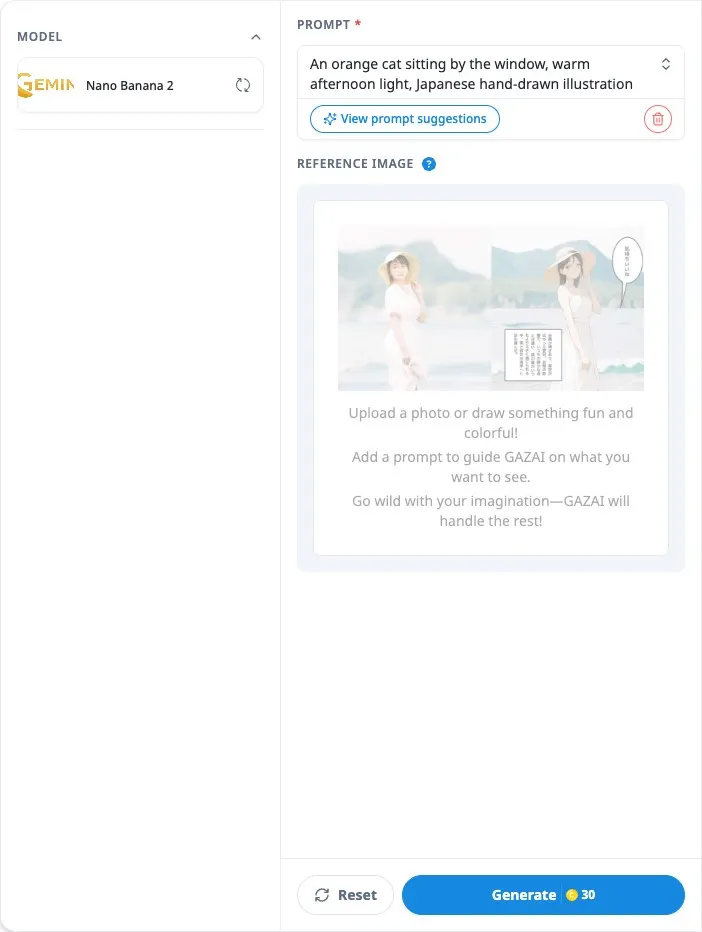
4. Check your settings and points, then generate
Before you send it, take a quick look:
- Model:is it the one you chose?
- Prompt:is it complete?
- Reference image:did you leave one there by accident?
If the model has settings like size, the defaults are fine for your first try. Check the points needed and the points you have left, then click "Generate"!
Tip:Points vary by model and settings, so go by what's on screen. Take a quick look each time you generate again, too.
5. Wait a moment, then check the result
After you send it, wait for the image to appear under "Output" on the right. There's no need to keep clicking "Generate". When it's ready, compare it with your prompt: Is it an orange cat? Is it sitting by the window? Does it have warm afternoon light and a hand-drawn feel?
If it isn't quite what you imagined, that's fine. Change just one thing at a time. For example, swap "warm afternoon light" for "soft overcast light", keep everything else, and generate again to compare.
6. Download the image you like
Under "Output" on the right, make sure it's the image you want to keep, then click the download icon at the top. When your browser finishes, look for the file in your download list or Downloads folder.
Want a bigger view? Click "Details" in the output area to see the full image, along with the prompt and size used.
Tip:If you can't click the download button, check that the image has finished generating.
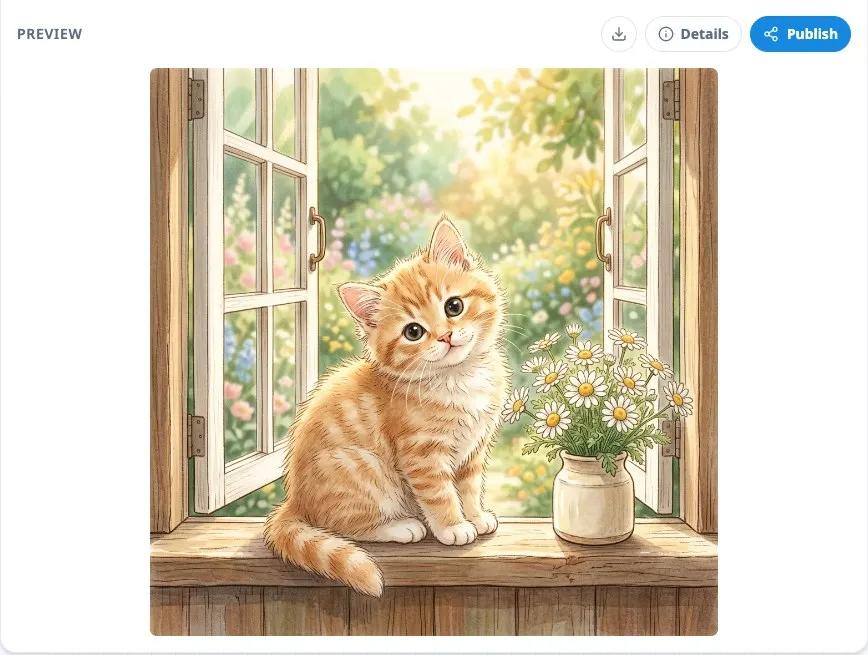
7. Look back in "History"
Click an earlier generation in the "History" area on the right, and "Output" switches to that image. Confirm it's the one you're looking for before downloading. When comparing versions, check which one is selected so you don't mistake an old version for the new one.
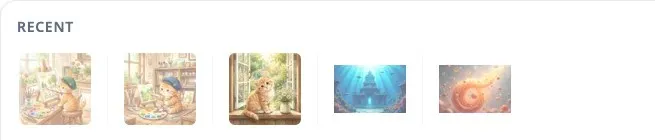
In a narrower window:switch to the "Output" tab at the top first. The history row appears as "Recent", and the image area appears as "Preview". Figures 4 and 5 are close-ups of this layout. Downloading and selecting work the same way.
🖼️ What we made
These are all screenshots from the real site, with an orange cat by the window as the example. The 30 points shown is just this example. The actual points depend on the model and settings you use.
🎨 Change the description and play again!
Changing one thing at a time makes the difference easiest to see. Try these:
- Change the subject:"an orange cat" → "a Shiba Inu"
- Change the lighting:"warm afternoon light" → "moonlight at night"
- Change the style:"Japanese hand-drawn illustration" → "soft watercolor style"
Click "Generate" again and see what the same scene turns into!
🛠️ Stuck? Start here
- Can't click Generate:Check that you've entered a prompt, then try again.
- Generation failed:Read the error message and check "History" to see whether an image is still processing. Don't keep sending the same request.