✨ What will we make?
Give your ideas a home! Open a canvas, bring images, text, and frames together, and give your work a name you'll recognize. Next time, you can pick up right where you left off.
🚀 Follow along, step by step!
We'll walk through the whole flow with a canvas called "My First Poster": create a canvas → name it → add text → save → go back to the list → reopen it. Everything below comes from real screenshots.
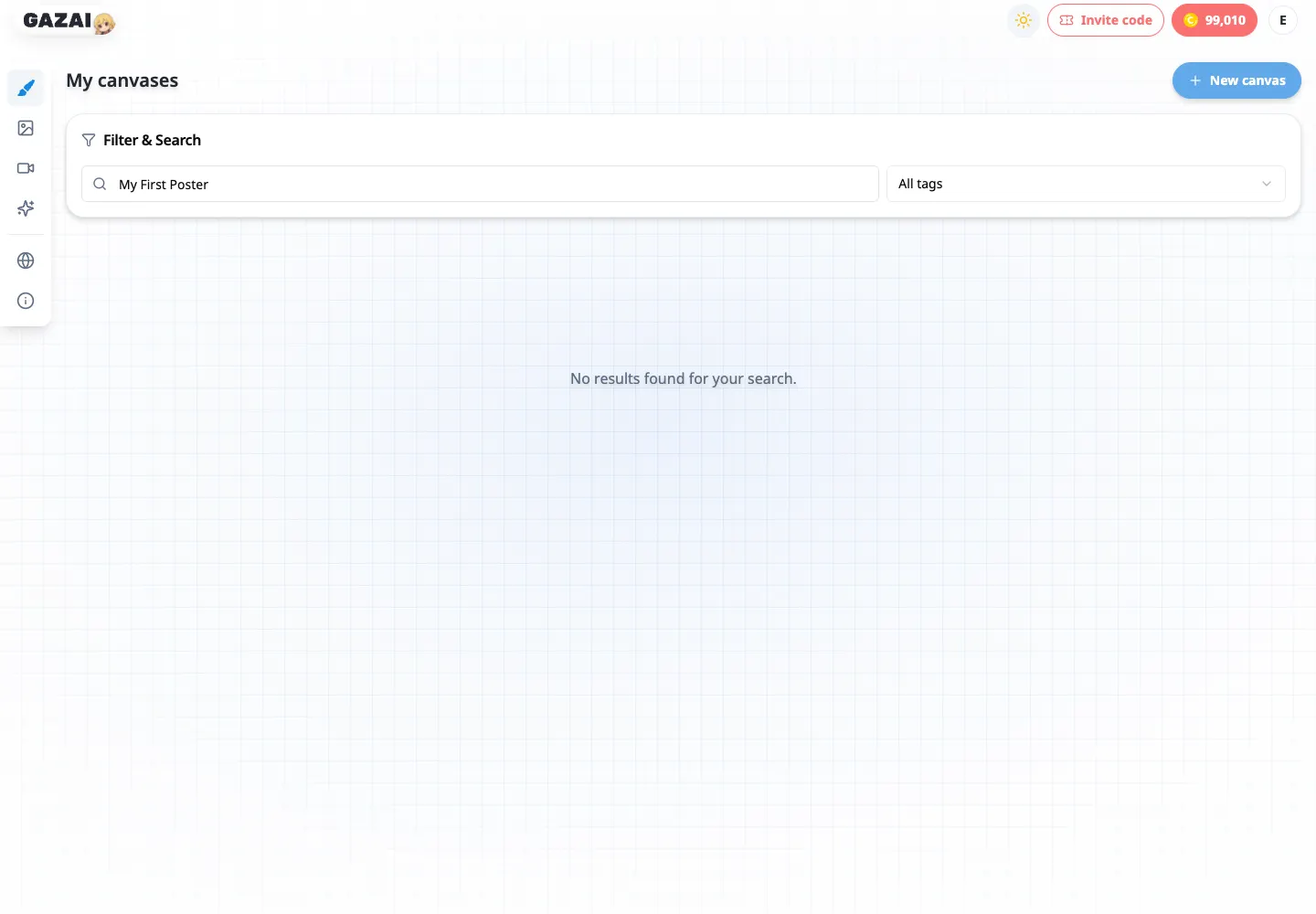
1. Open "My canvases" and create a new canvas
After logging in to GAZAI, go to "My canvases" from the navigation bar and click the blue "New canvas" button in the top right.
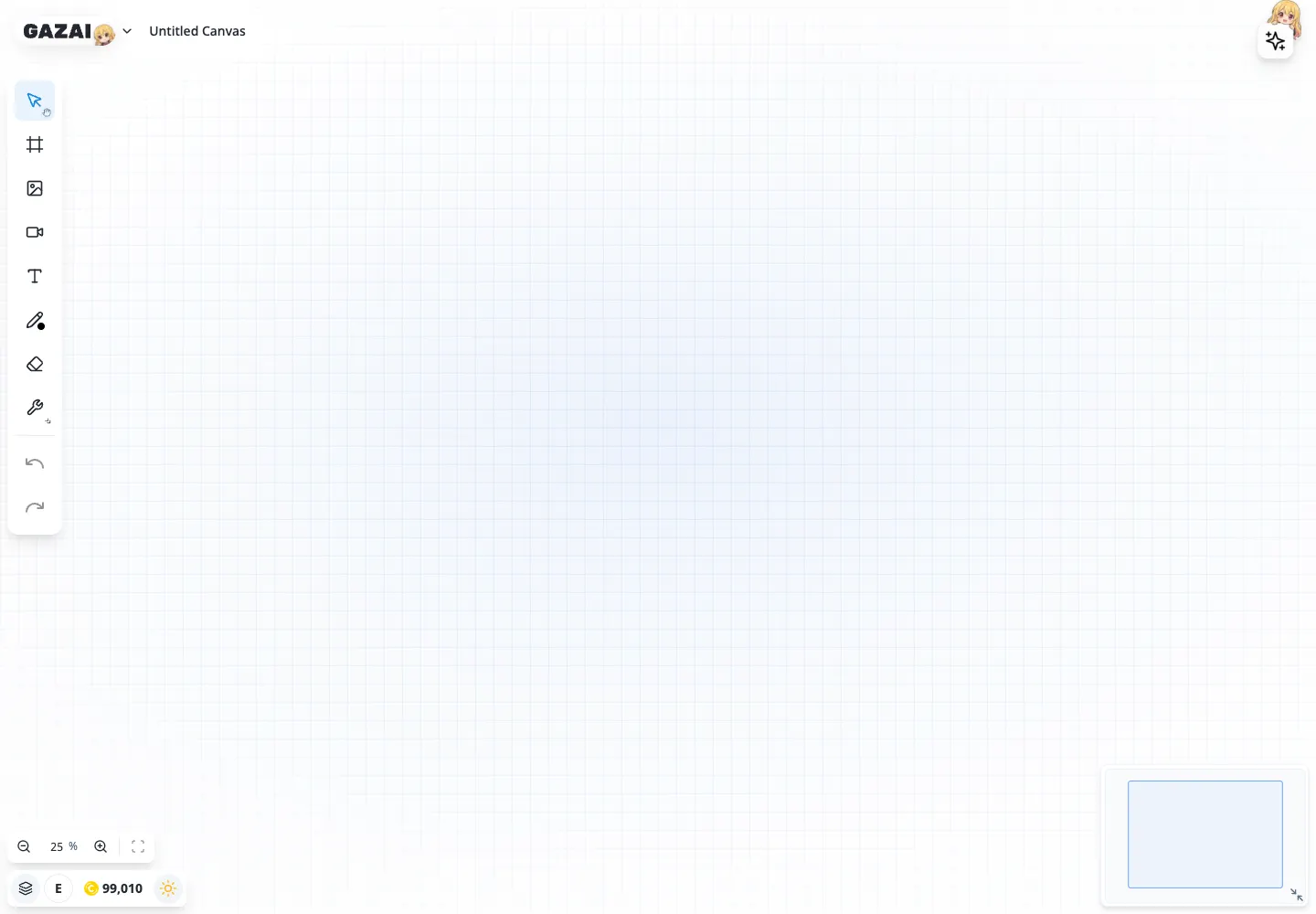
Once the editor loads, you'll see the default name "Untitled Canvas" in the top left, an empty workspace in the middle, and the toolbar on the left.
2. Give your canvas a name
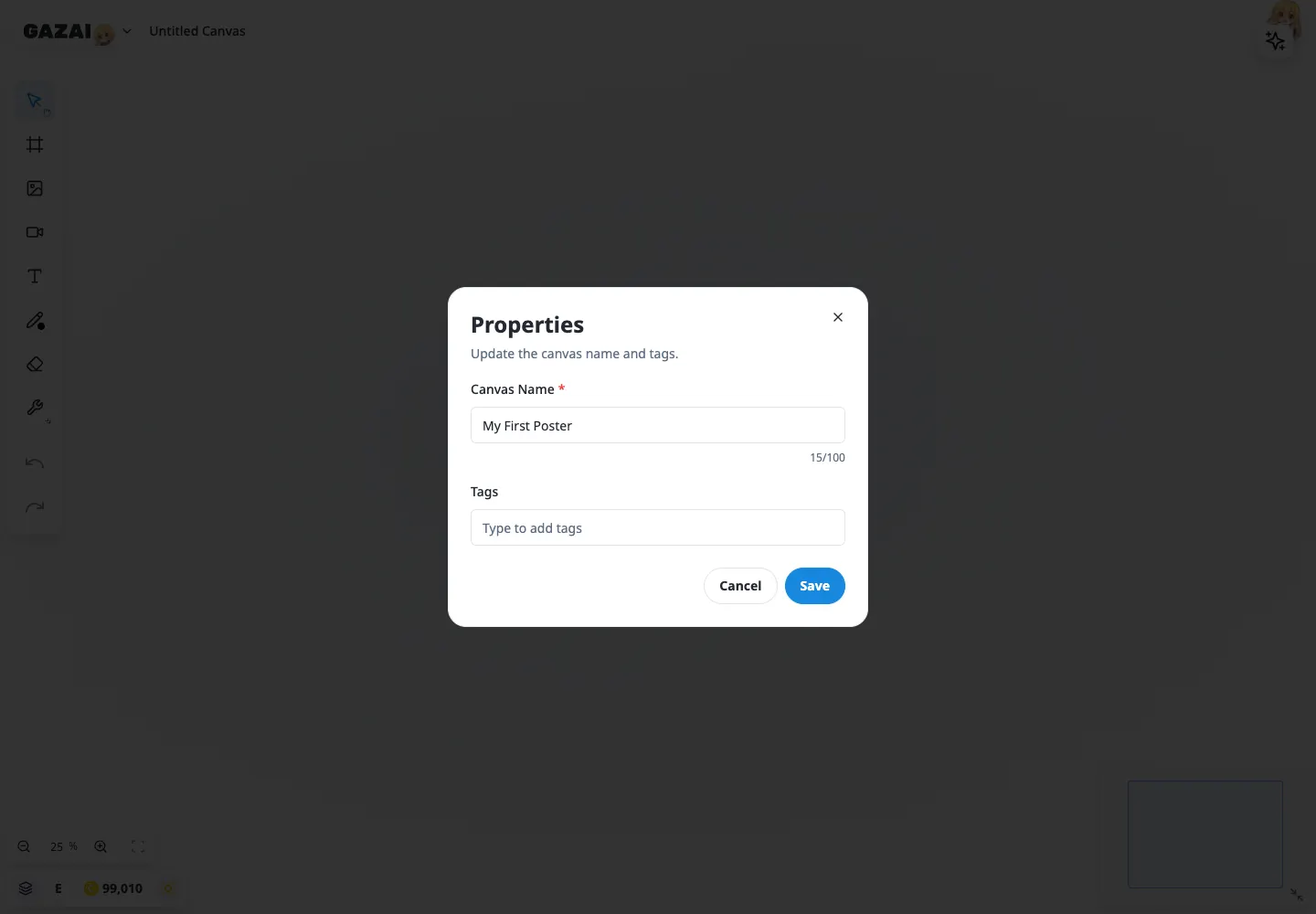
Click "Untitled Canvas" in the top left to open the "Properties" window. Enter "My First Poster" under "Canvas Name", then click "Save" in the bottom right.
Want to organize your canvases? You can also add tags in the "Tags" field. For this practice run, feel free to leave it empty.
When the window closes, the name in the top left changes to "My First Poster".
Quick tip:This "Save" button only covers the canvas name and tags. What's on the canvas saves automatically, and step 4 shows you how to save it by hand.
3. Add some text
Click the "T" text tool in the left toolbar. A text box appears on the canvas, ready for typing. Enter "Let's create!".
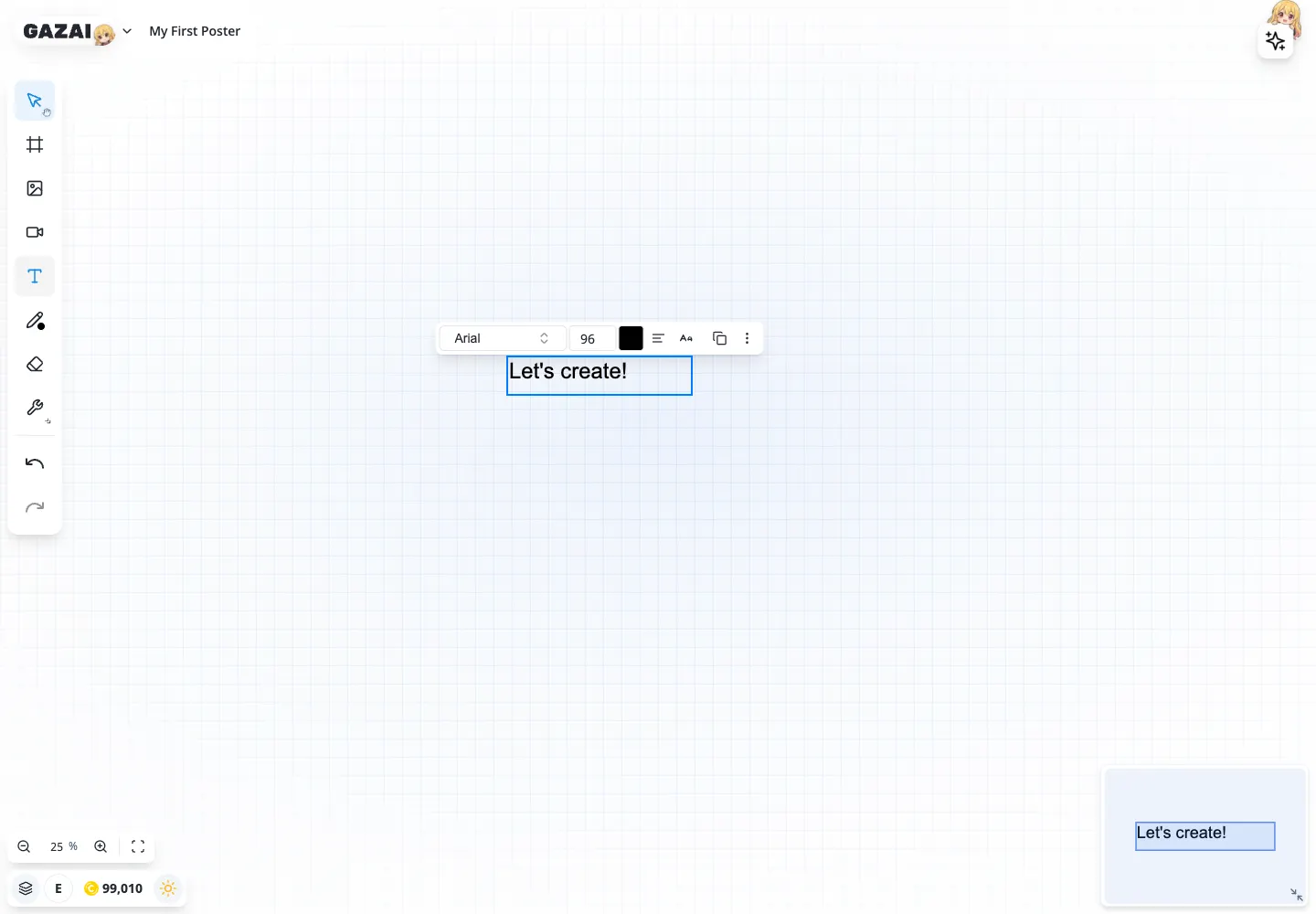
Press Esc when you're done typing, then click an empty spot to deselect. To change the font, size, or color later, seeAdd text to your canvas.
The left toolbar also has tools for images, videos, frames, and more, and each gets its own guide later on. For your first try, this bit of text is plenty. Now let's try saving!
4. Save your canvas (automatically or by hand)
Good news: whenever you add, move, or adjust something, the canvassaves automatically, so there's no need to keep thinking about it.
Want to save once more for peace of mind? Click the down arrow next to the GAZAI logo in the top left to open the canvas menu, then click "Save canvas", or just press ⌘/Ctrl + S.
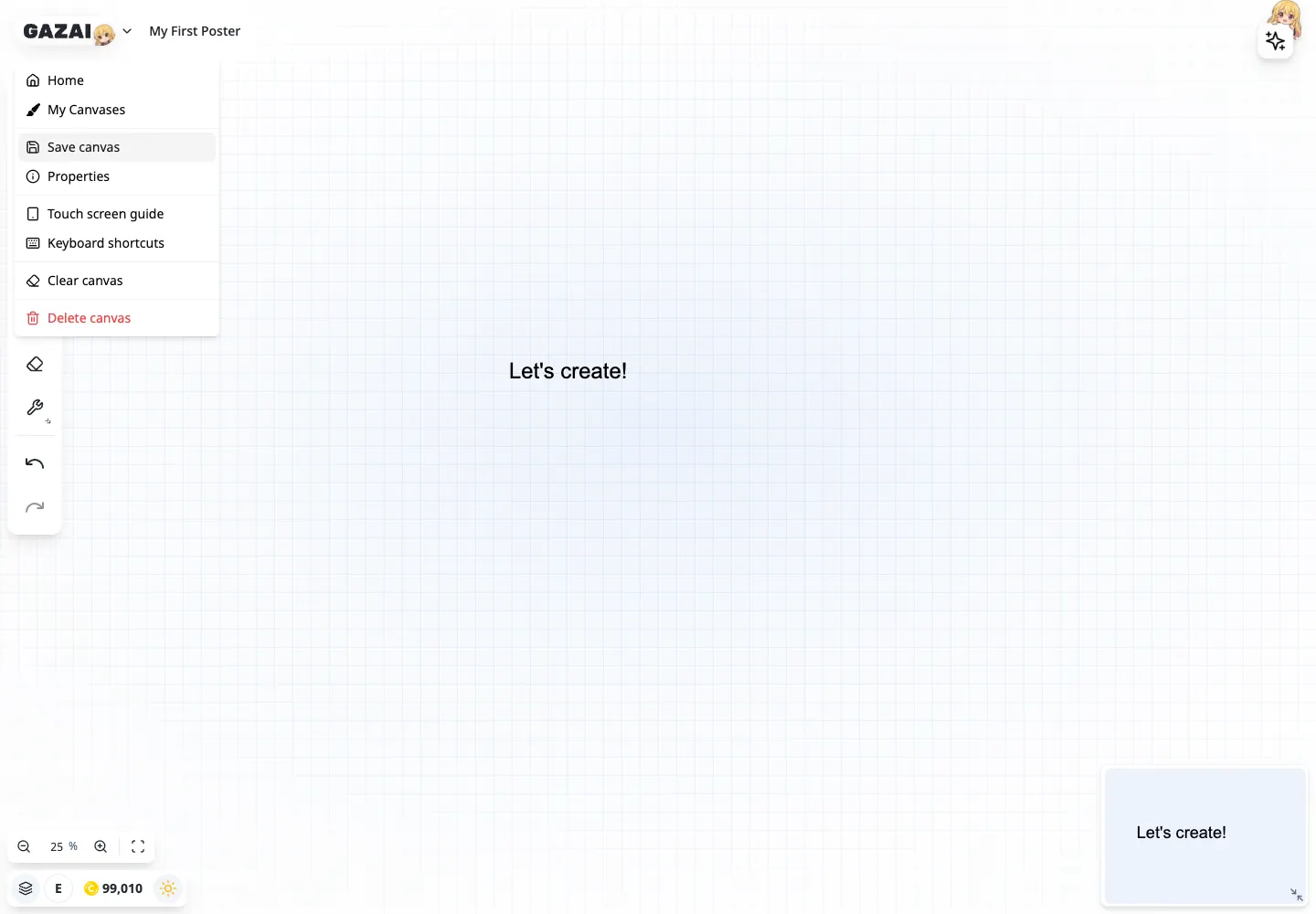
When you save by hand, the message "Canvas saved successfully" tells you it worked. If you still see "Canvas is saving...", stay on this tab for a moment.
5. Go back to "My canvases" and find your work
Open the top-left menu again and click "My Canvases". Look for the "My First Poster" card in the list.
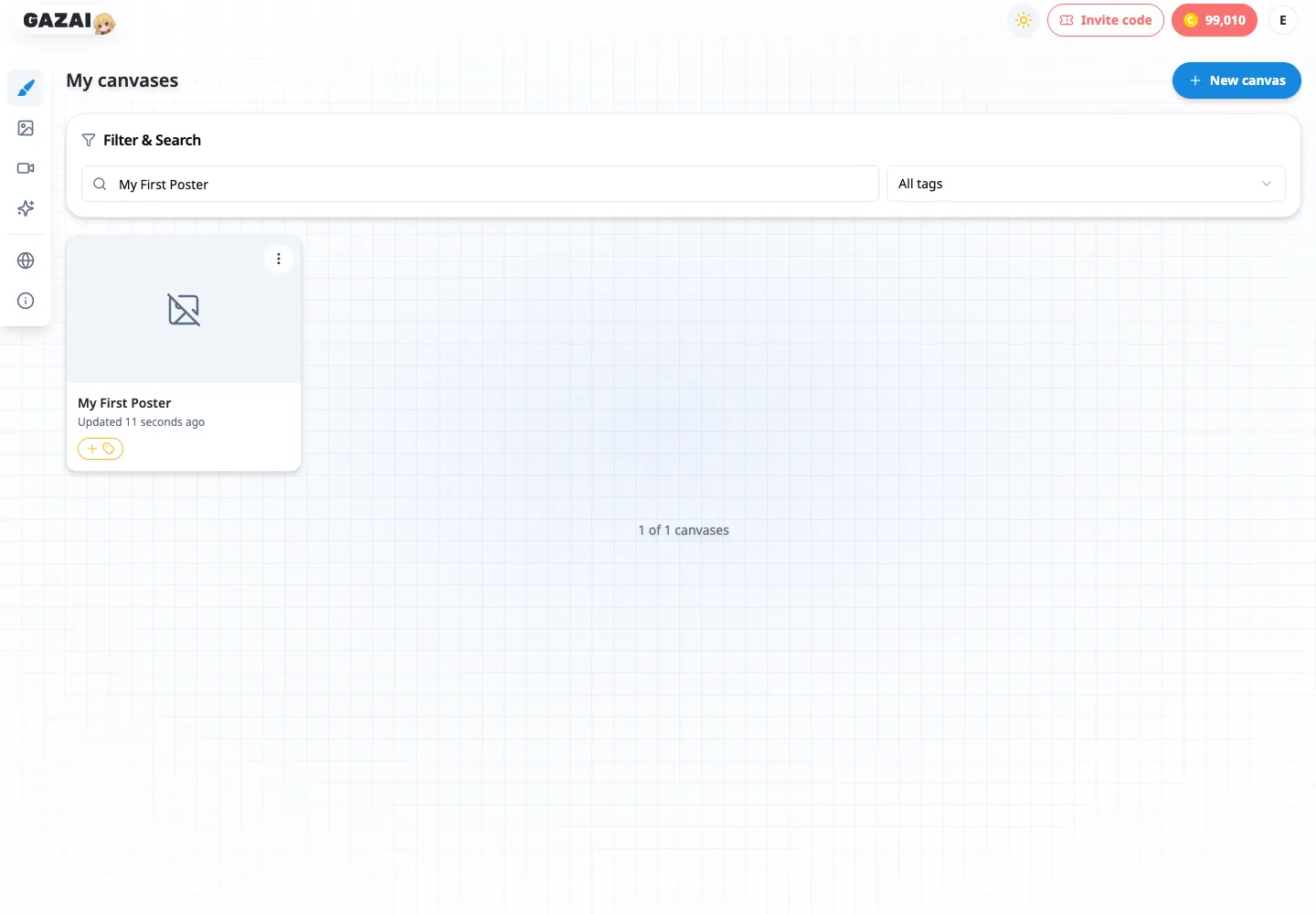
6. Reopen it and check that everything's still there
Click the "My First Poster" card to return to the editor. The name in the top left should be the same, and "Let's create!" should still be on the canvas.
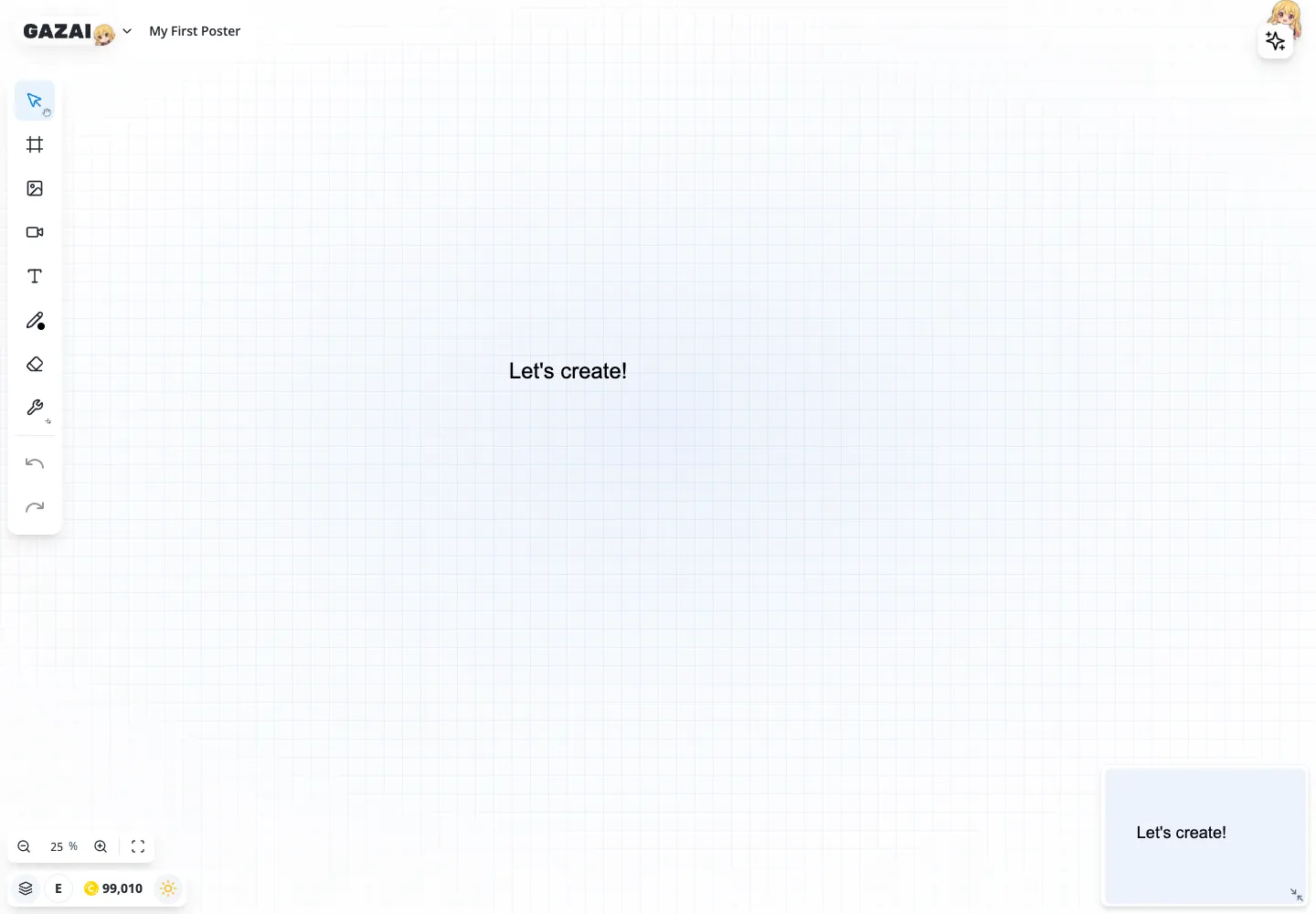
Whenever you want to keep creating, just open the same card from "My canvases"!
🛠️ Stuck? Check here first
- Save failed?Saving requires you to be logged in with a stable connection. If you see an error, keep the tab open, check your connection, and try again.
- Want to leave right after editing?Give autosave a few seconds to finish, or save by hand once before closing the page.