
✨ What will we make?
Bring your canvas to life! Generate a short video from a single sentence, or place videos you've uploaded or generated on the canvas alongside your images and text.
🚀 Follow along, with a screenshot for every step
Everything below comes from real screenshots. Don't have a canvas yet? Start withBuild your first creative space on the canvas.
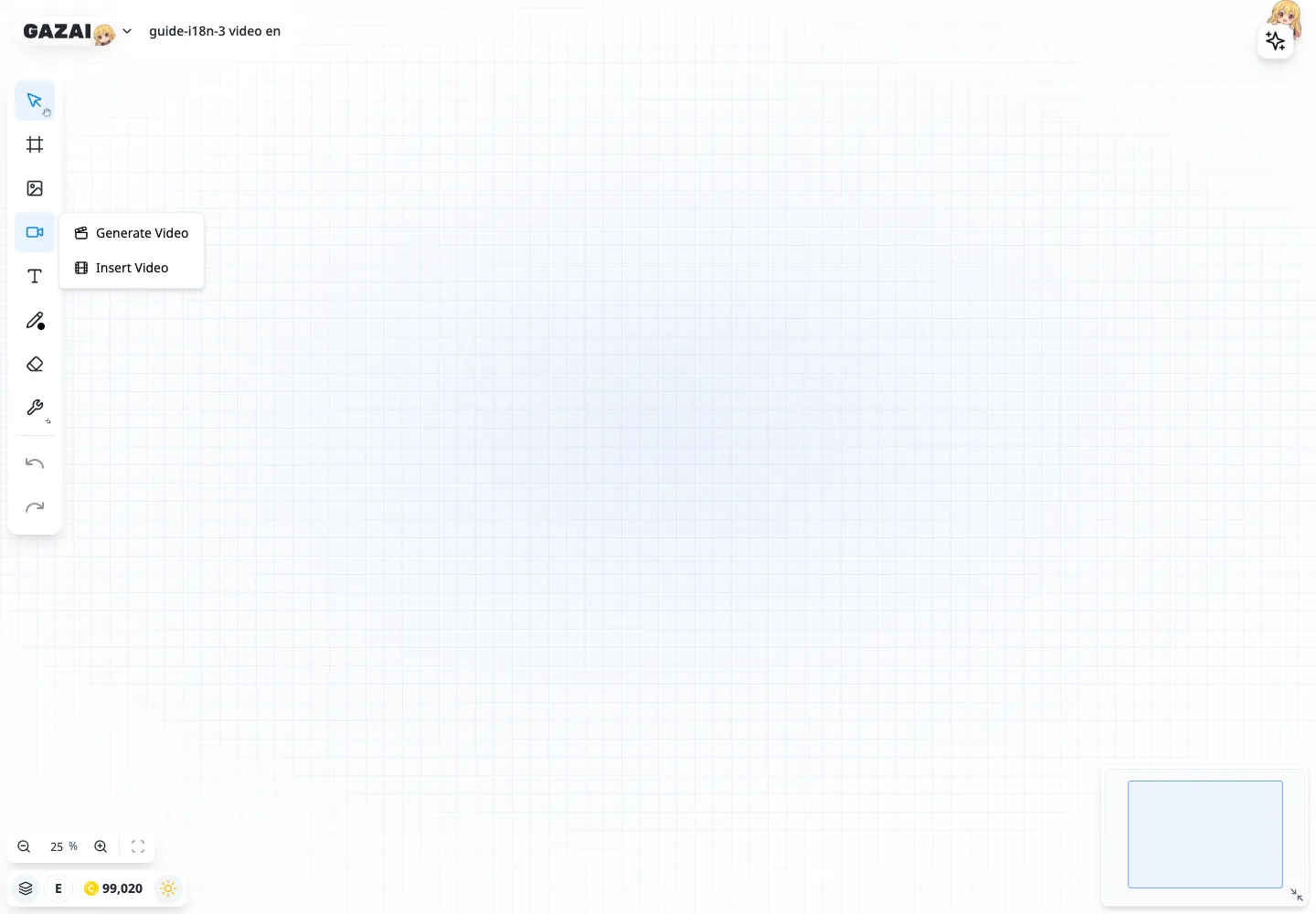
01 | Open the video menu
Click the camera icon in the left toolbar to see two options:
- Generate Video: Write a description and let AI make a new video.
- Insert Video: Upload a video from your computer, or pick one you've generated before.
🎬 Option 1: Generate a video with AI
02 | Choose your settings and describe the scene
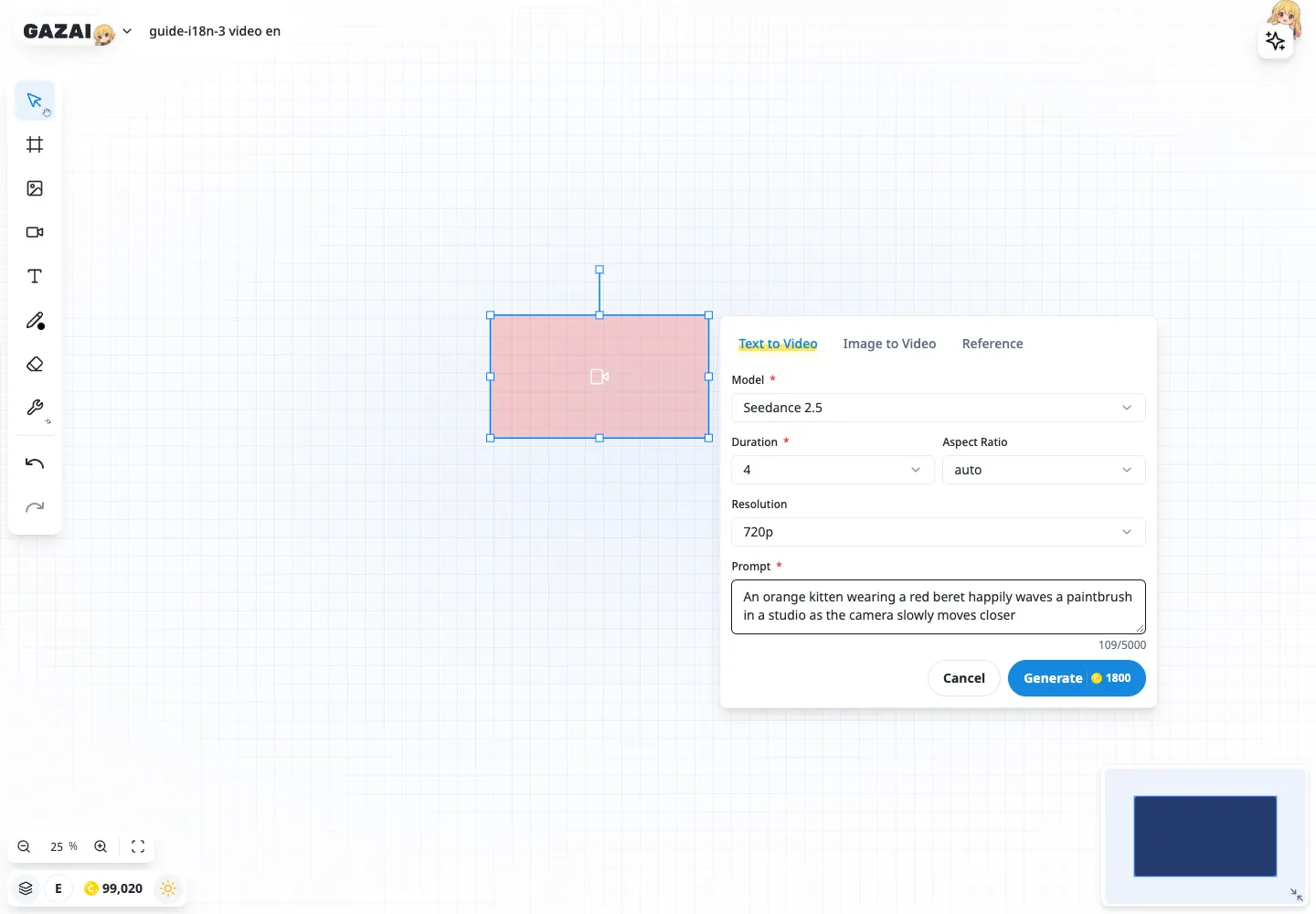
Click "Generate Video". A pink placeholder appears on the canvas with a generation panel next to it. The panel has three tabs at the top:
- Text to Video: Describe the scene in words only. That's what we use here.
- Image to Video: Use an image as the opening shot and bring it to life.
- Reference: Use images or videos as reference material.
Next, choose the model, duration, aspect ratio, and resolution, then describe your scene under "Prompt". Here we chose Seedance 2.5, 4 seconds, and 720p, with the prompt "An orange kitten wearing a red beret happily waves a paintbrush in a studio as the camera slowly moves closer".
You'll see:The "Generate" button shows how many points this will cost. Points vary a lot by model, duration, and resolution, so take a look before you click.
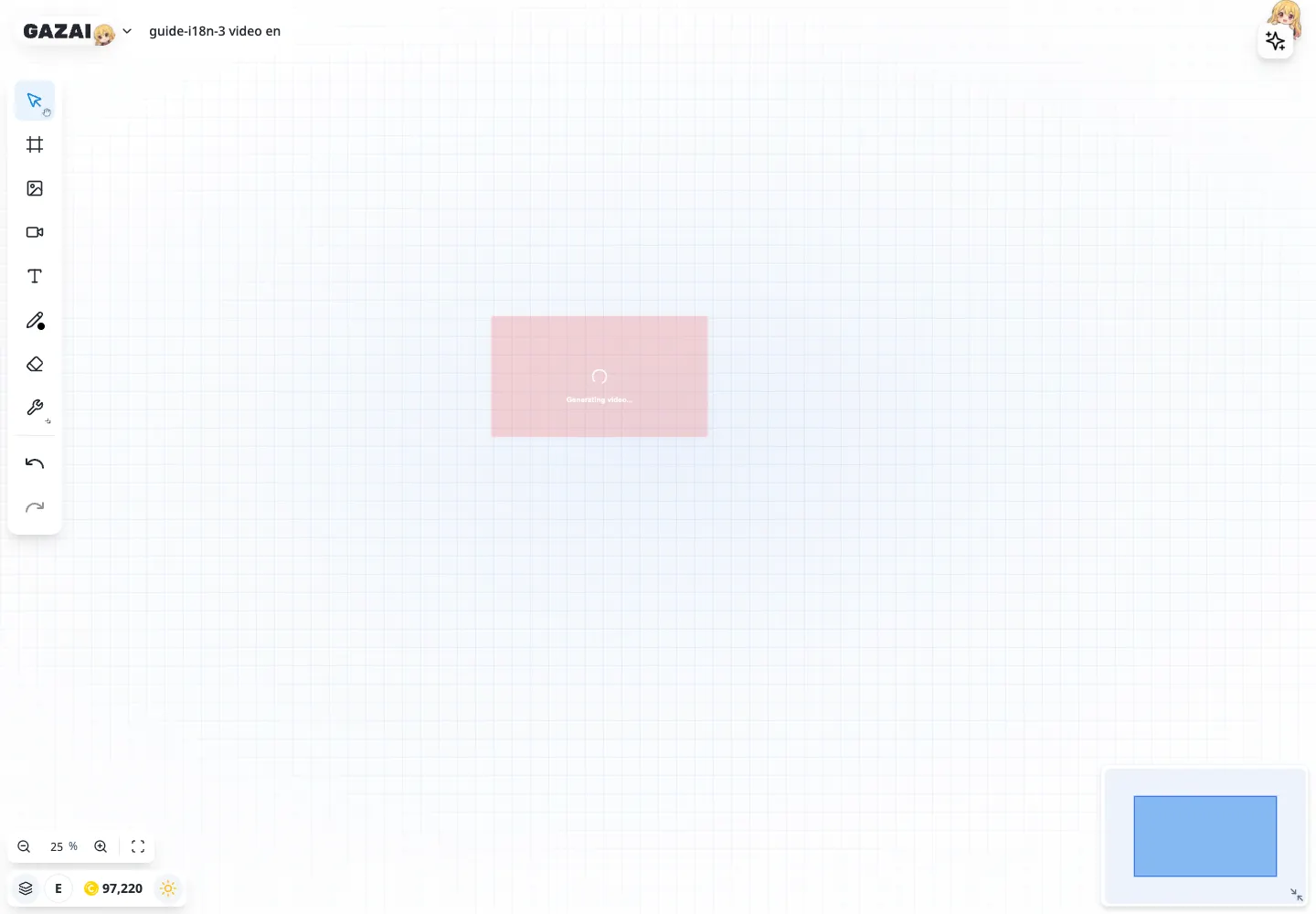
03 | Wait for your video
The placeholder shows "Generating video...". Videos take much longer than images, sometimes several minutes.
Quick tip:Stay on this canvas tab while you wait, and don't close or refresh it.
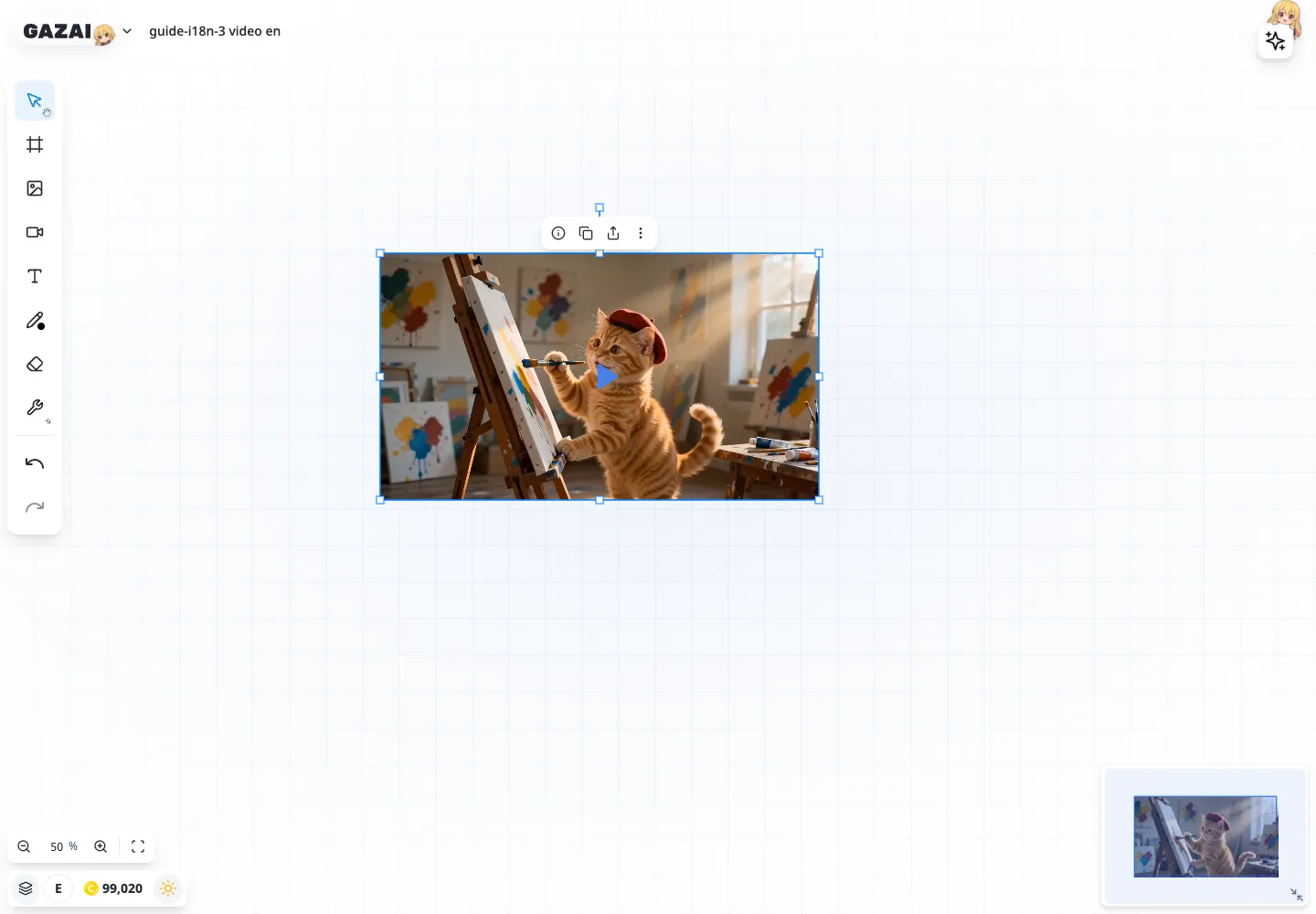
04 | Your video appears on the canvas
You'll see:The finished video replaces the placeholder, with a play icon in the middle. Just like an image, you can drag it to move it and pull a corner to resize it. The toolbar above also lets you duplicate or publish it when it's selected.
Want to animate an image on your canvas?Select it and choose "Generate Video" from "Edit". SeeEdit images on your canvas: AI Edit, Remove Background, and more.
📁 Option 2: Insert a video
05 | Upload or choose a video
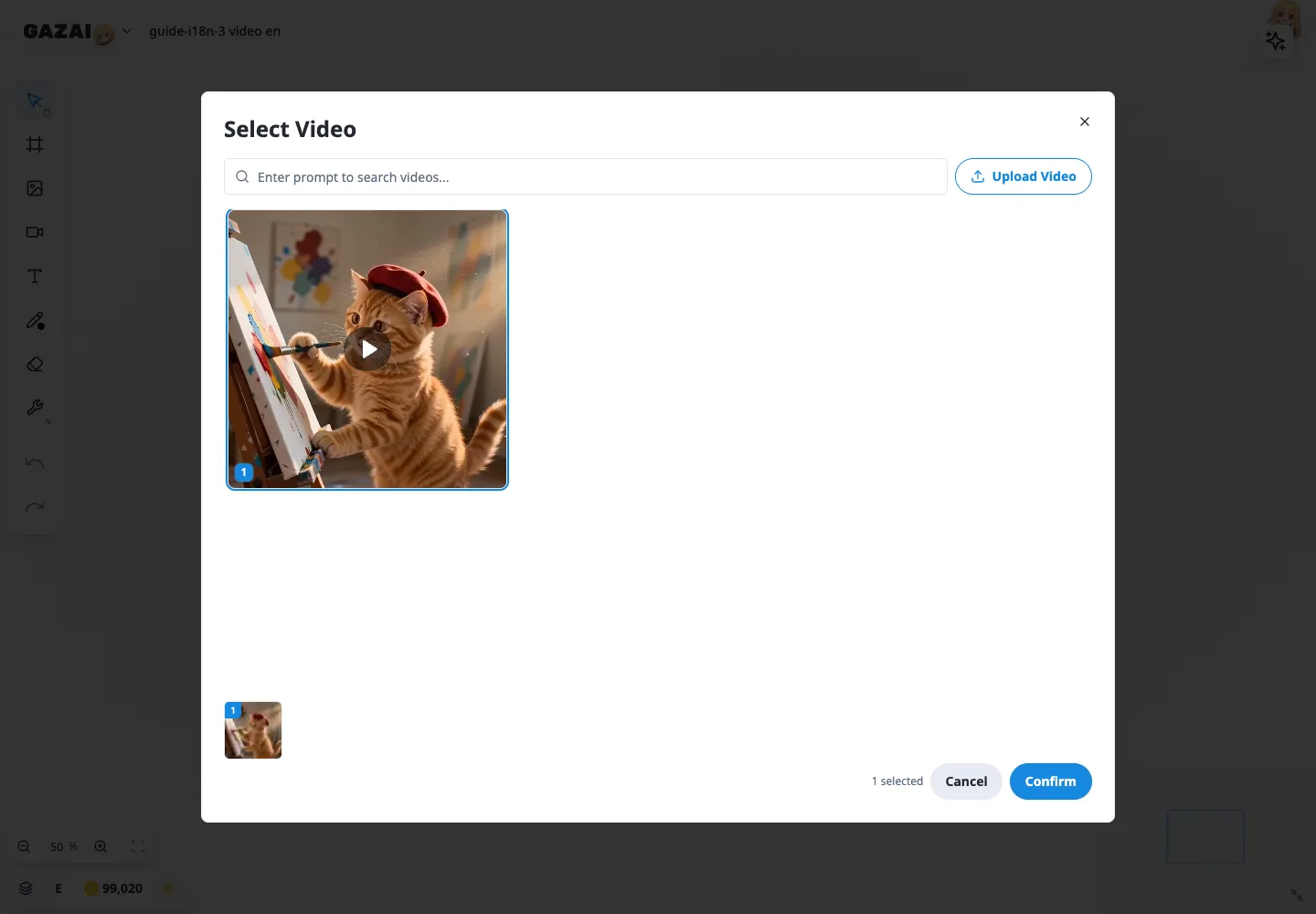
Click the camera icon on the left and choose "Insert Video" to open the "Select Video" window:
- Upload something new: Click "Upload Video" in the top right and choose a file from your computer.
- Use an earlier video: The list shows videos you've generated or uploaded. Click a thumbnail to select it, or search by prompt in the field at the top.
You'll see:A number at the bottom left of the selected video and "1 selected" at the bottom right. Click "Confirm" to add it to your canvas.
🛠️ Stuck? Check here first
- Can't click "Generate"?A prompt is required, and check that you have enough points.
- Still waiting after a long time?Videos are naturally slower. Stay on the tab for a bit, and don't click "Generate" again.
- Upload failed?Make sure the file is a video and isn't too large or too long.
- Want more video generation tips?SeeGenerate your first video on the Video Generation page.