
✨ What will we make?
Squares, circles, stars, and triangles land on your canvas with one click. Change the color and add a border, and they work great as decorations or title backgrounds!
🚀 Follow along, with a screenshot for every step
Everything below comes from real screenshots. Don't have a canvas yet? Start withBuild your first creative space on the canvas.
01 | Find the shape tool
Shapes are tucked inside "Manga tools", the wrench icon in the left toolbar. Click the wrench, then move your mouse to the third icon (shapes). Four shapes open to the right: Square, Circle, Star, and Triangle.
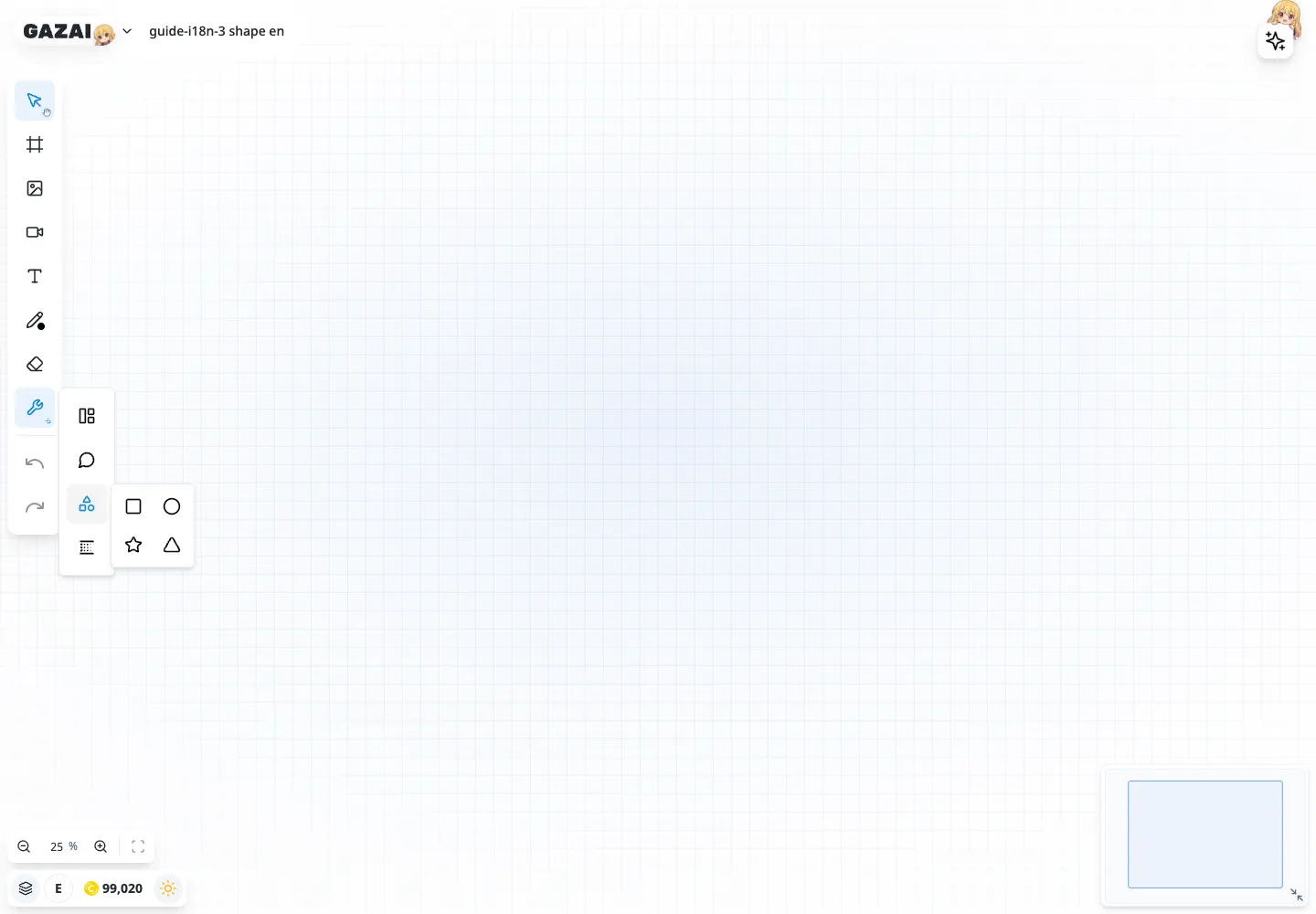
02 | Add a shape to the canvas
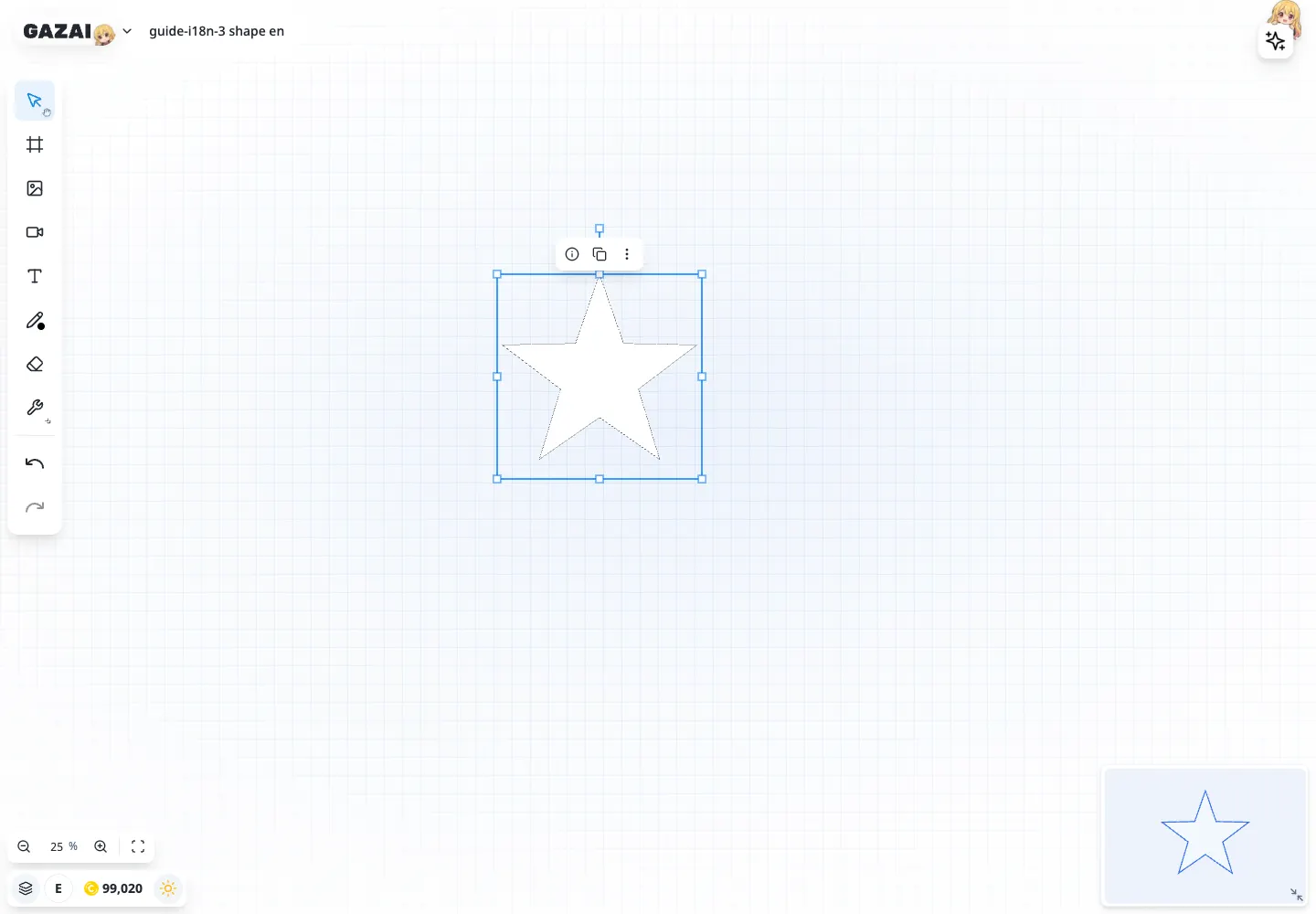
Click the shape you want. We chose the star here.
You'll see:A white star in the middle of the view, already selected. Drag it to move it, and drag the handles around it to resize.
03 | Change the color and add a border
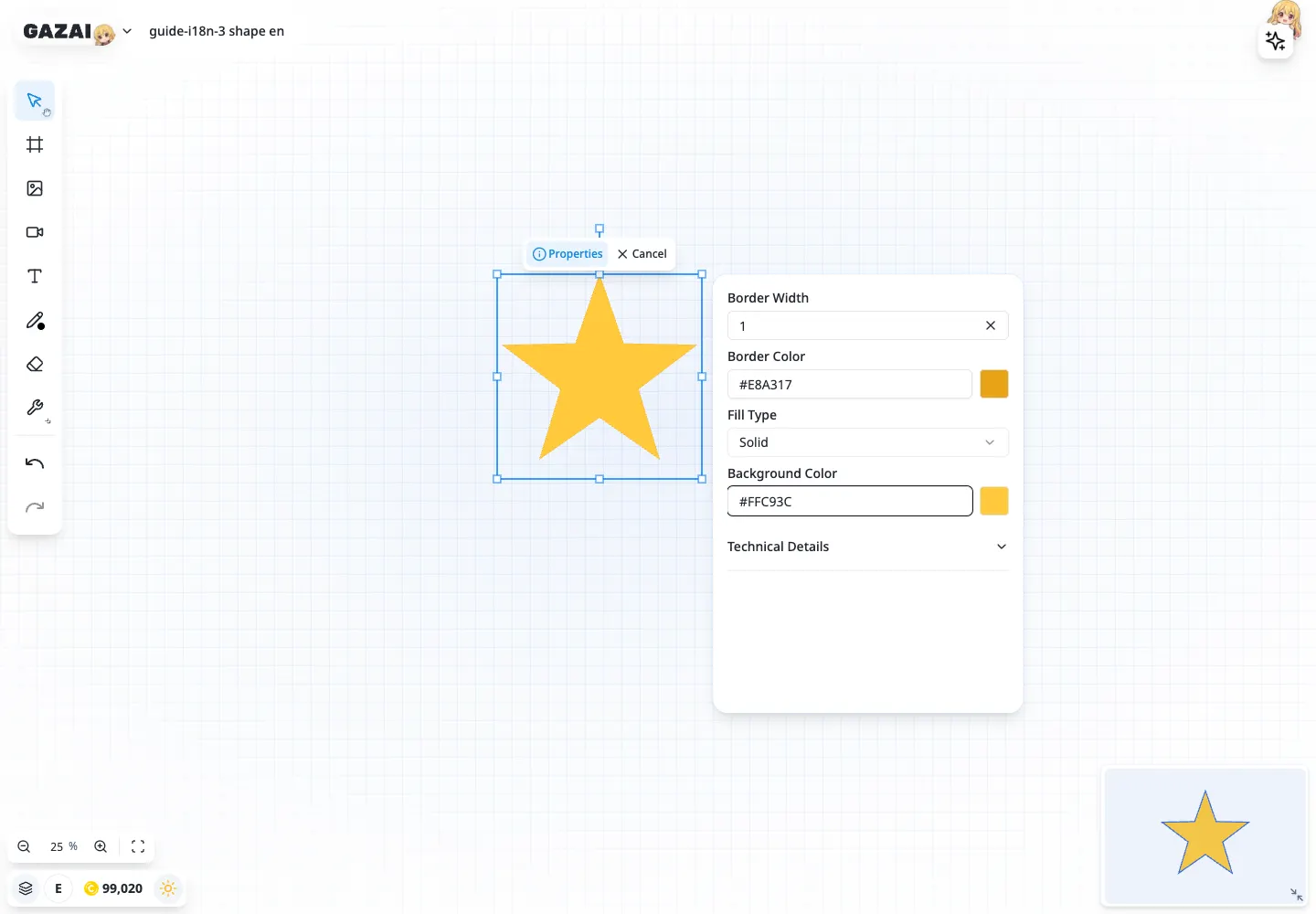
With the shape selected, click "Properties" (the i in a circle) in the toolbar above it to open the settings panel on the right:
- Border Width: The bigger the number, the thicker the border.
- Border Color: Enter a color code, or click the swatch next to it to pick a color.
- Fill Type: Choose "Solid" or "Gradient".
- Background Color: The color inside the shape.
Here we set Background Color to #FFC93C and Border Color to #E8A317, which turns the star yellow. When you're done, click "Cancel" or an empty spot on the canvas to close the panel.
04 | All done
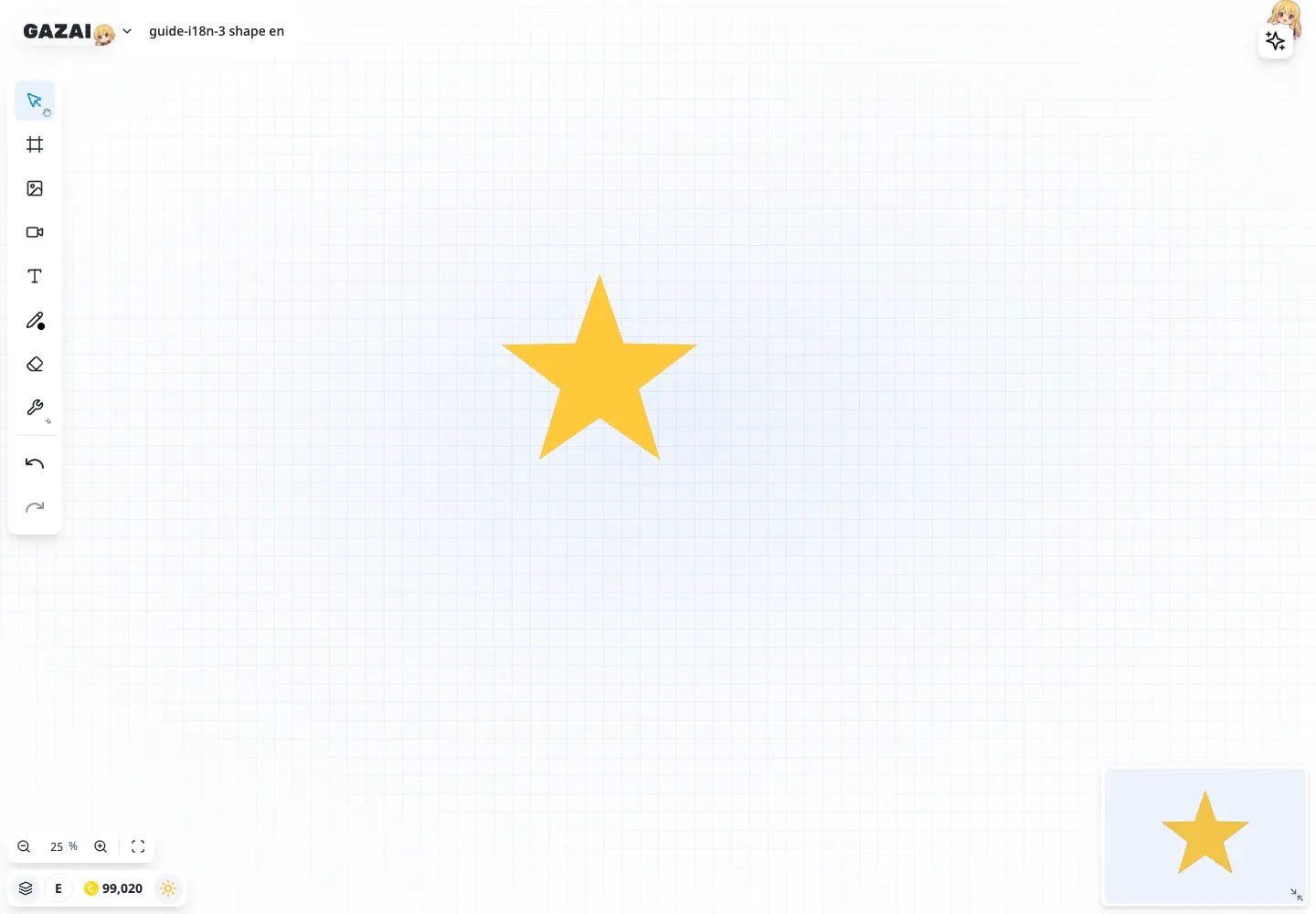
You'll see:A yellow star on your canvas. Want another just like it? Select it and use "Duplicate" in the toolbar.
🛠️ Stuck? Check here first
- Can't find the shapes?They're in the "Manga tools" wrench, and only open when your mouse is on the third icon.
- Shape covering something else?Select it and change the layer order from "More" in the toolbar, or seeOrganize your canvas with layers, zoom, and the mini map.
- Color didn't change?Press Enter after typing the color code, which should be # followed by 6 characters.