
✨ What will we explore?
Use the layer list to pick the right object, zoom in and out to check details, then jump to another area with the mini map. If you've already placed some text, images, or frames and are ready to tidy up your work, this one's for you!
🎒 Before you start
Log in toGAZAIand open a canvas that already has some content. Still blank? FollowAdd text to your canvasto put a few things on it first.
🚀 Follow along, step by step!
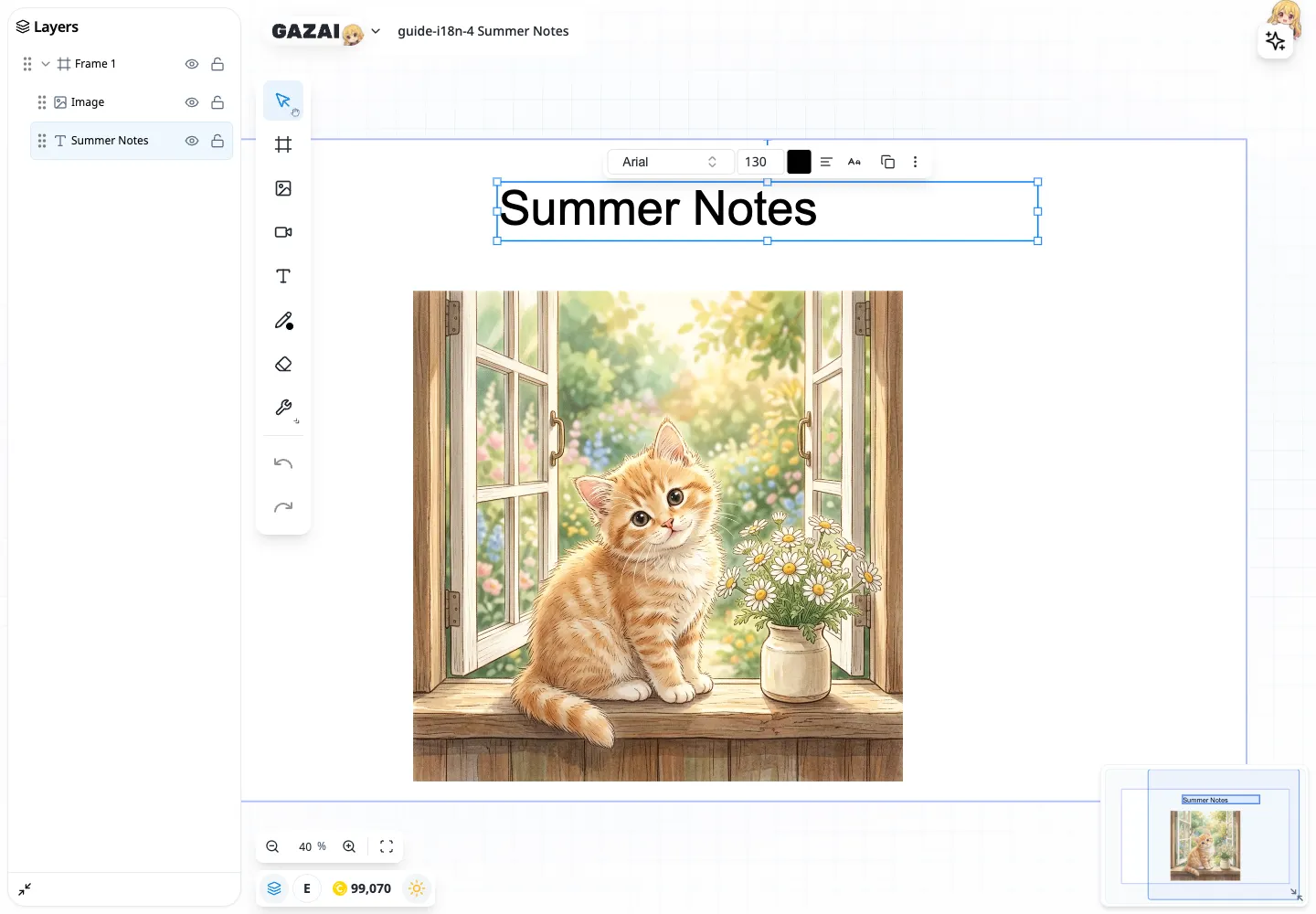
Step 1: Select an object from the layer list
Click the stacked "Layers" icon at the bottom left and find the name of the object you want to edit. If the object sits inside a frame, click the arrow next to the frame to expand the list, then click the object's name.
You'll see:The selected row is highlighted, and the matching object on the canvas gets a selection box. Once it's selected, switch back to the "Select / Pan" tool and you can reposition it on the canvas.
The eye on the right of each layer temporarily hides its content, and the lock keeps an arranged object in place. For more ways to use them and fix problems, seeCan't find something on your canvas? Three ways to get it back.
Step 2: Use zoom to switch between details and the big picture
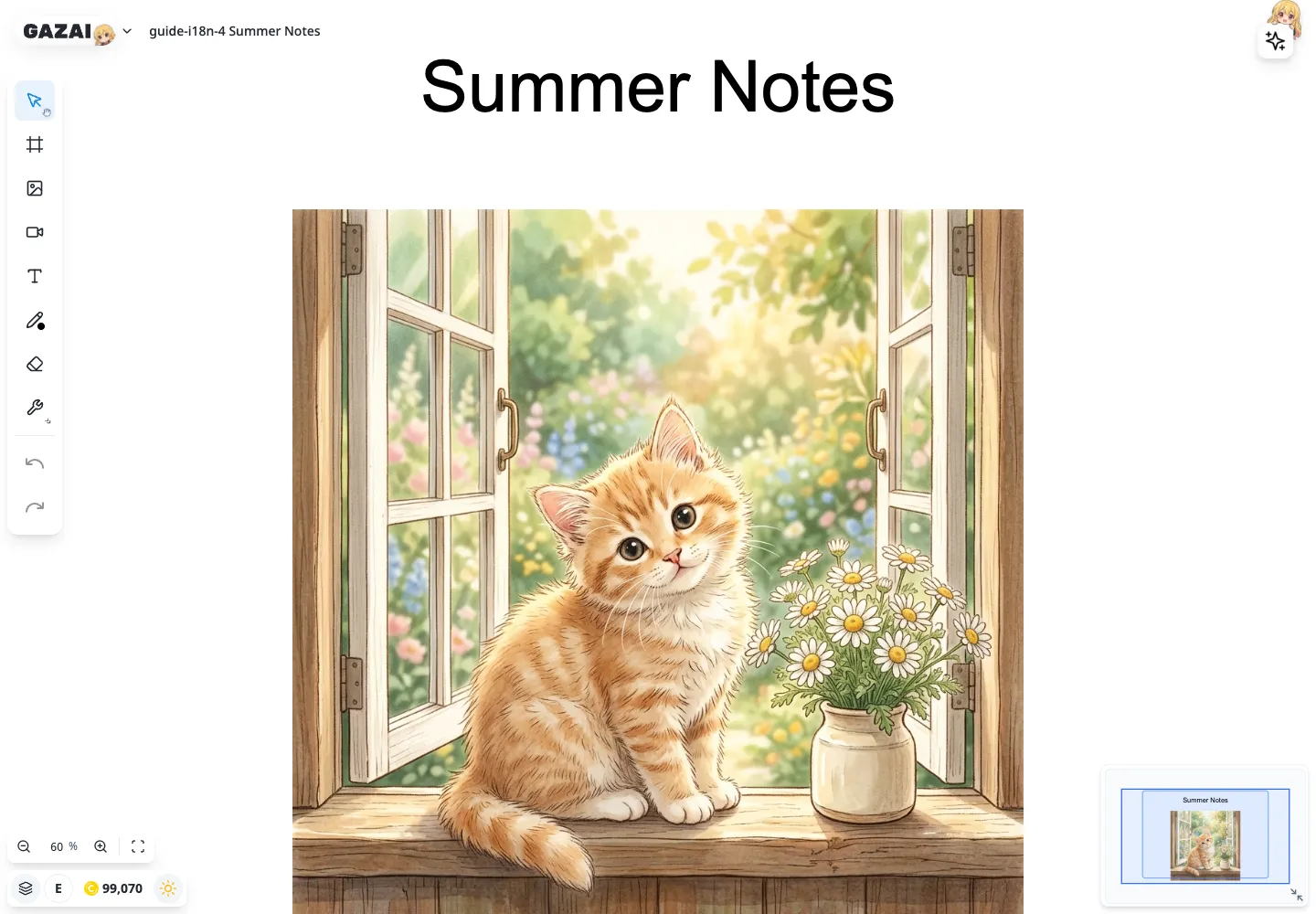
Press "+" or "-" in the zoom toolbar at the bottom left, or type a number in the percentage field and press Enter. While the layer panel is open, the zoom toolbar shifts a little to the right.
You'll see:The view scale changes, and the viewport box on the mini map changes with it.
Quick tip:Zooming only changes your view, not the size of the object itself. To make text bigger, change its font size.
Finished with the details? Press "Show all" (Shift + 1) at the far right of the toolbar to get back to the full view.
Step 3: Move your view with the mini map
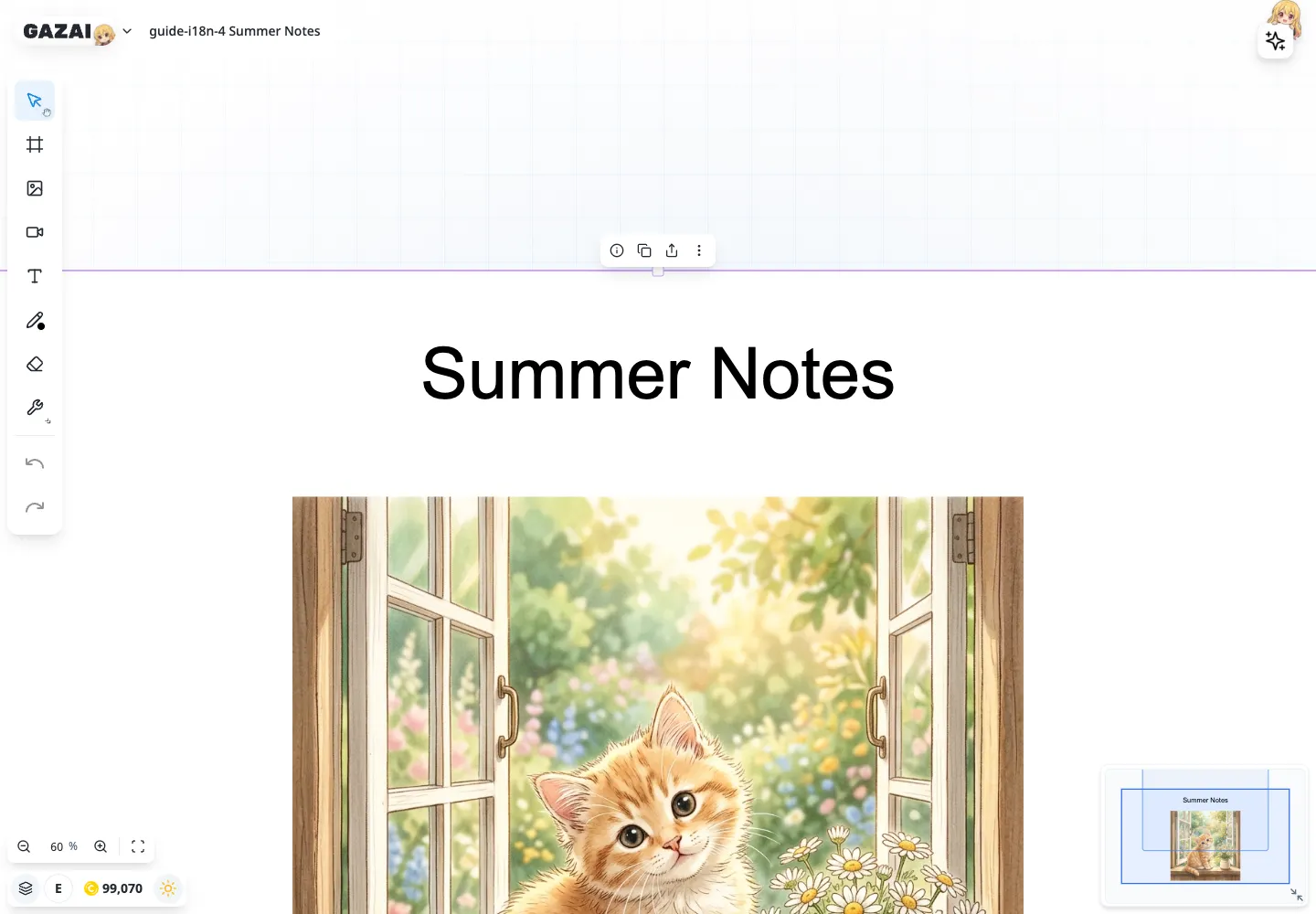
The mini map at the bottom right shows your whole piece, and the blue viewport box marks what you're looking at right now. Click where you'd like to go, or drag on the mini map, and the main view follows.
You'll see:The zoom stays the same, and the main view and the mini map's viewport box move to the new spot together. The mini map only moves where you're looking, so nothing in your work gets moved.
✅ Quick practice
Let's put all three together: select an object from the layers → zoom in to check the details → use the mini map to move to another area → finally press "Show all" to see the whole thing again.
🛠️ Stuck? Check here first
- An object is missing or won't move?Find the fix inCan't find something on your canvas? Three ways to get it back.
- The layer panel takes up too much room?Click "Collapse Layer Panel", or click the "Layers" button at the bottom left again.