
✨ What will we explore?
That image was right there a second ago, and now it's gone? You can see your text, but it won't move? Don't start over just yet! This article teaches you three little tricks for getting objects back on your canvas: "Show all", the layer panel, and the eye and lock icons.
🚀 Follow along, step by step!
Get ready: open a canvas
Log in to GAZAI, go to "My canvases", and open the canvas you want to check. If you just want to practice, click "New canvas" to try things on a blank one without touching your existing work.
The screenshots below are all in light mode. If you're in dark mode right now, click the theme button at the bottom left ("Switch to light theme").
Step 1: Add an object
We'll use text as the example. Click the "T" icon, "Add Text", on the vertical toolbar on the left (or just press T on your keyboard). A text object appears on the canvas, ready for editing.
Already have an image or text you can't find? Then there's no need to add anything. Skip straight to Step 3.
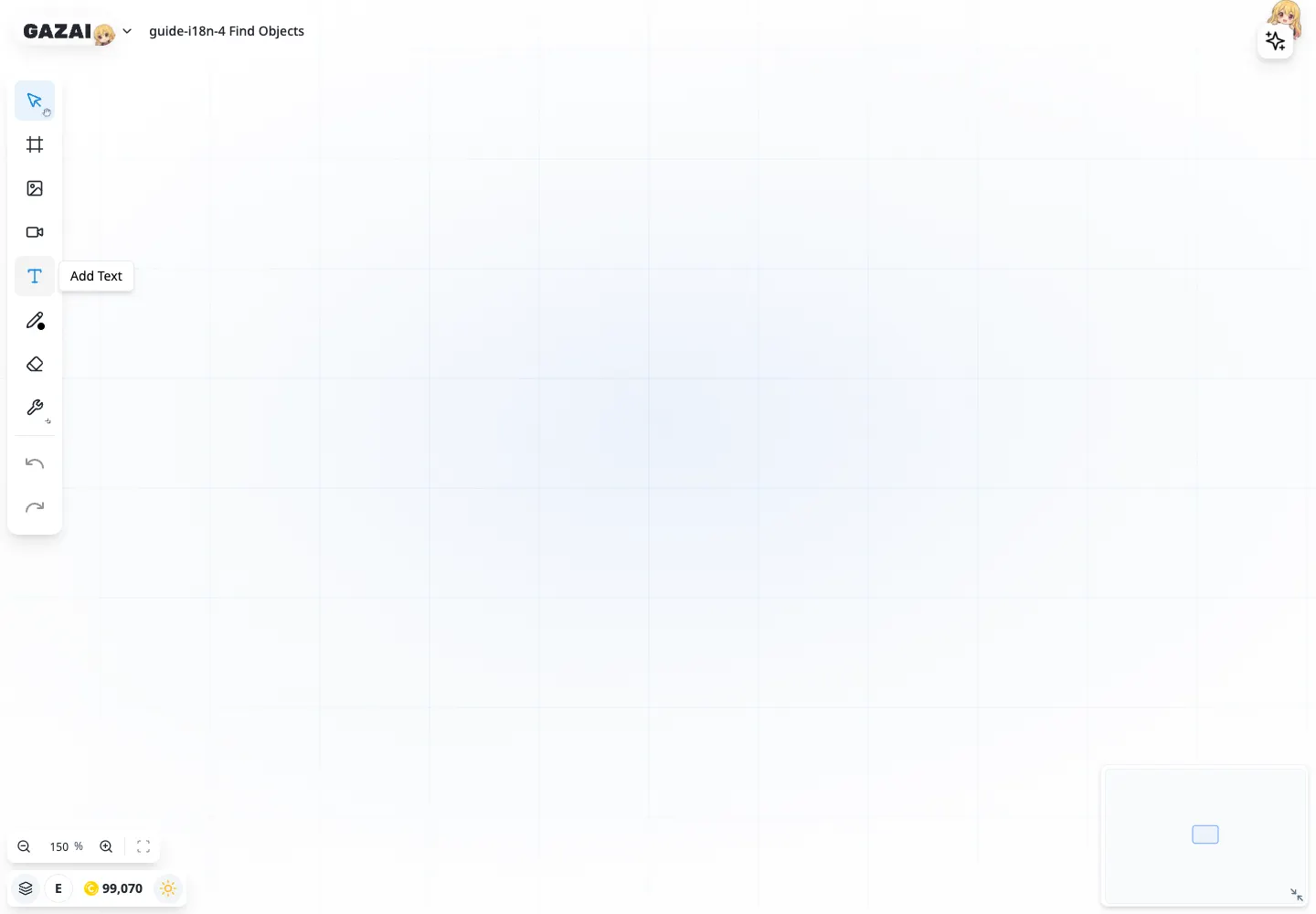
Step 2: Type some text and confirm the object was added
Type "Find My Object" in the text box, then click an empty part of the canvas to finish editing. Check that the text displays in full and matches the layer name. The screenshot uses black text at font size 25, with the view zoomed to 150%. If the text looks too small, press "+" at the bottom left to zoom in.
- Only part of the text is showing?The text box may be too small for the current font size. Lower the font size, or drag the text box wider and check again.
Quick tip:Zooming the canvas view alone won't make the text box fit more words.
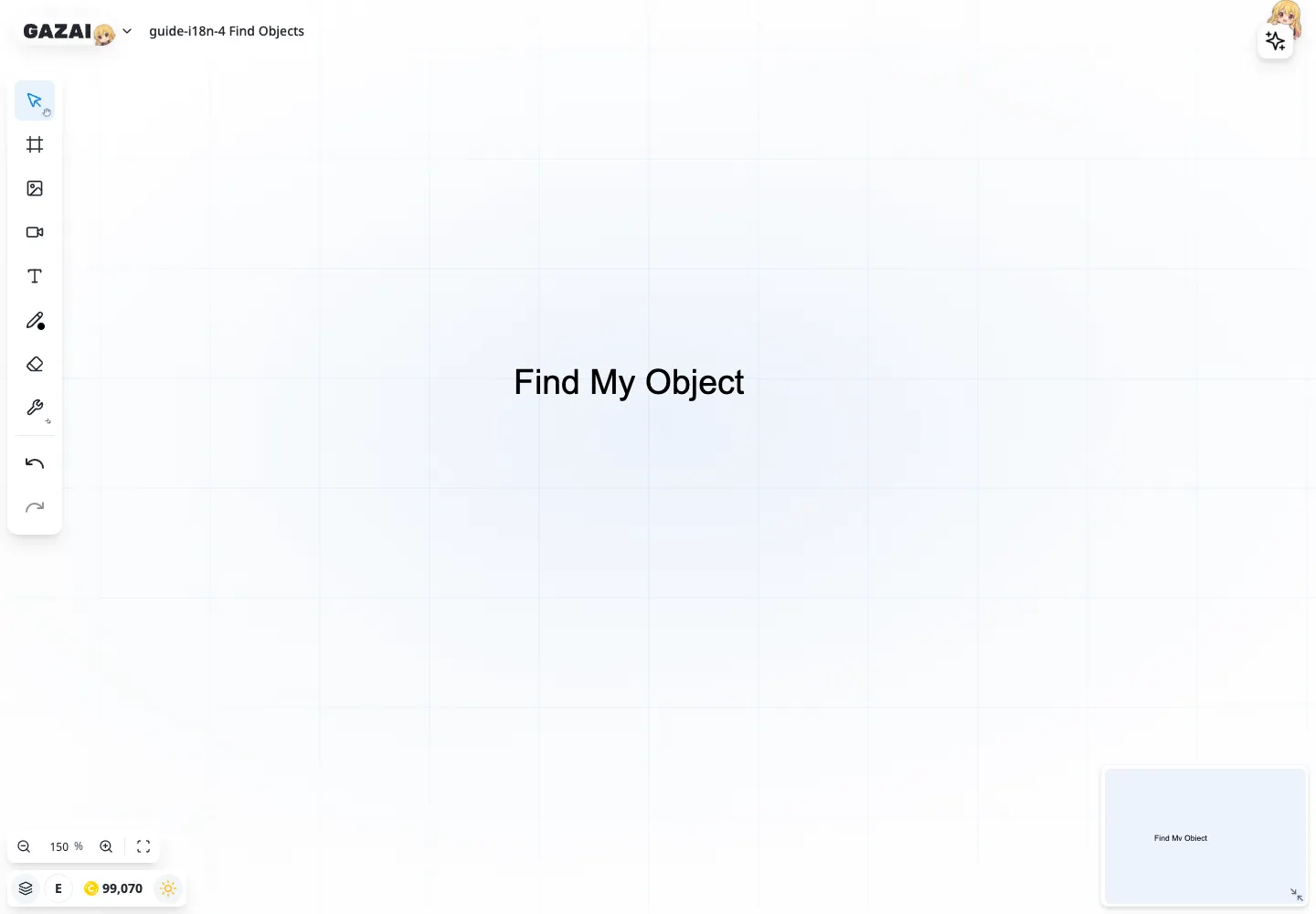
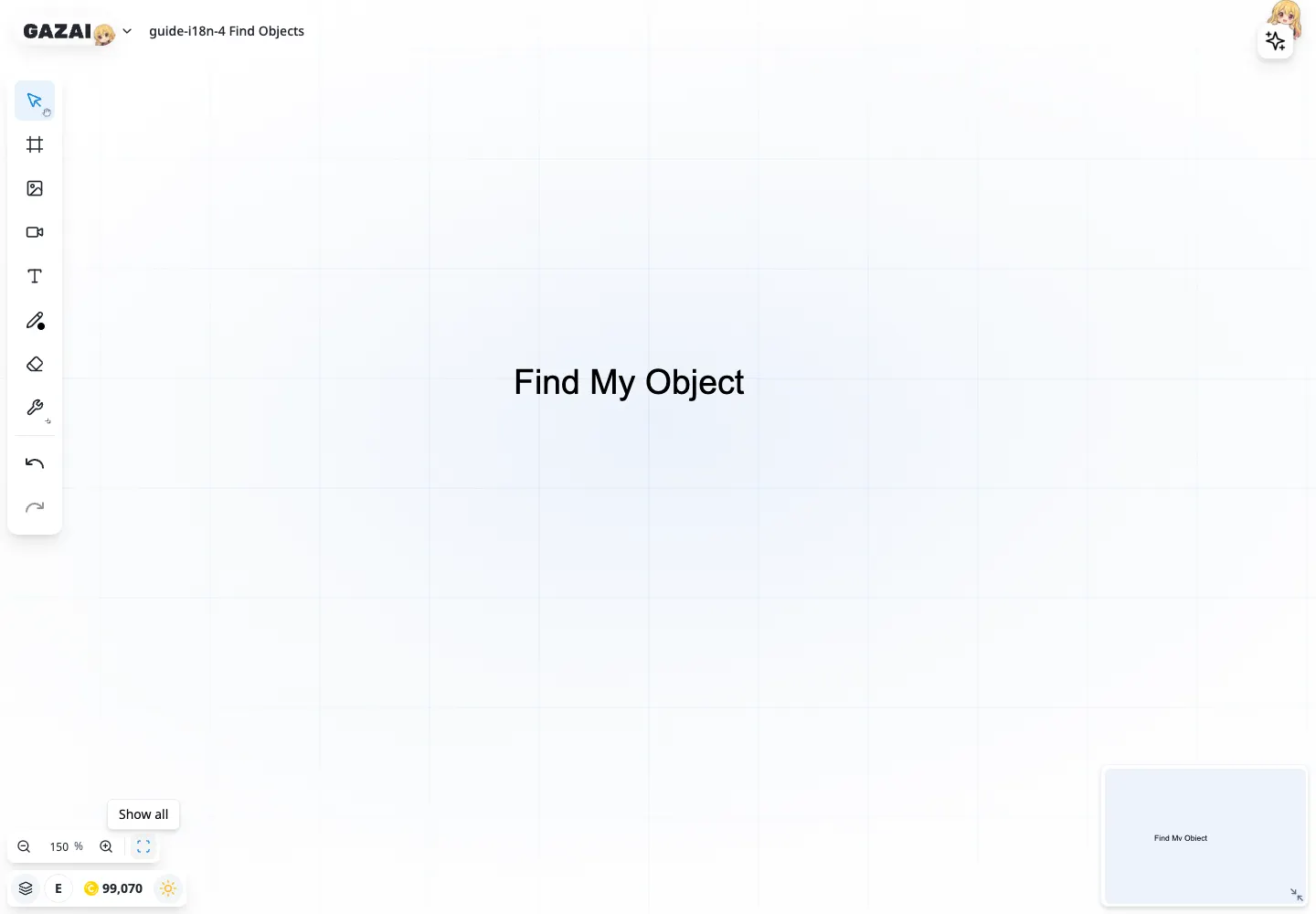
Step 3: Trick 1, press "Show all" to bring your view back
Look at the two rows of buttons at the bottom left. The top row is the zoom controls, and the four-corners icon on its far right is "Show all". The stacked icon on the far left of the bottom row is "Layers".
Often an object isn't really gone, it has just drifted outside your view. Click "Show all" (or press Shift + 1) and the view adjusts to fit every visible object. It only moves your view, so nothing is added or changed.
Is "Show all" grayed out?That means there are no visible objects on the canvas right now, so they may well be hidden. Open the layer panel next and take a look!
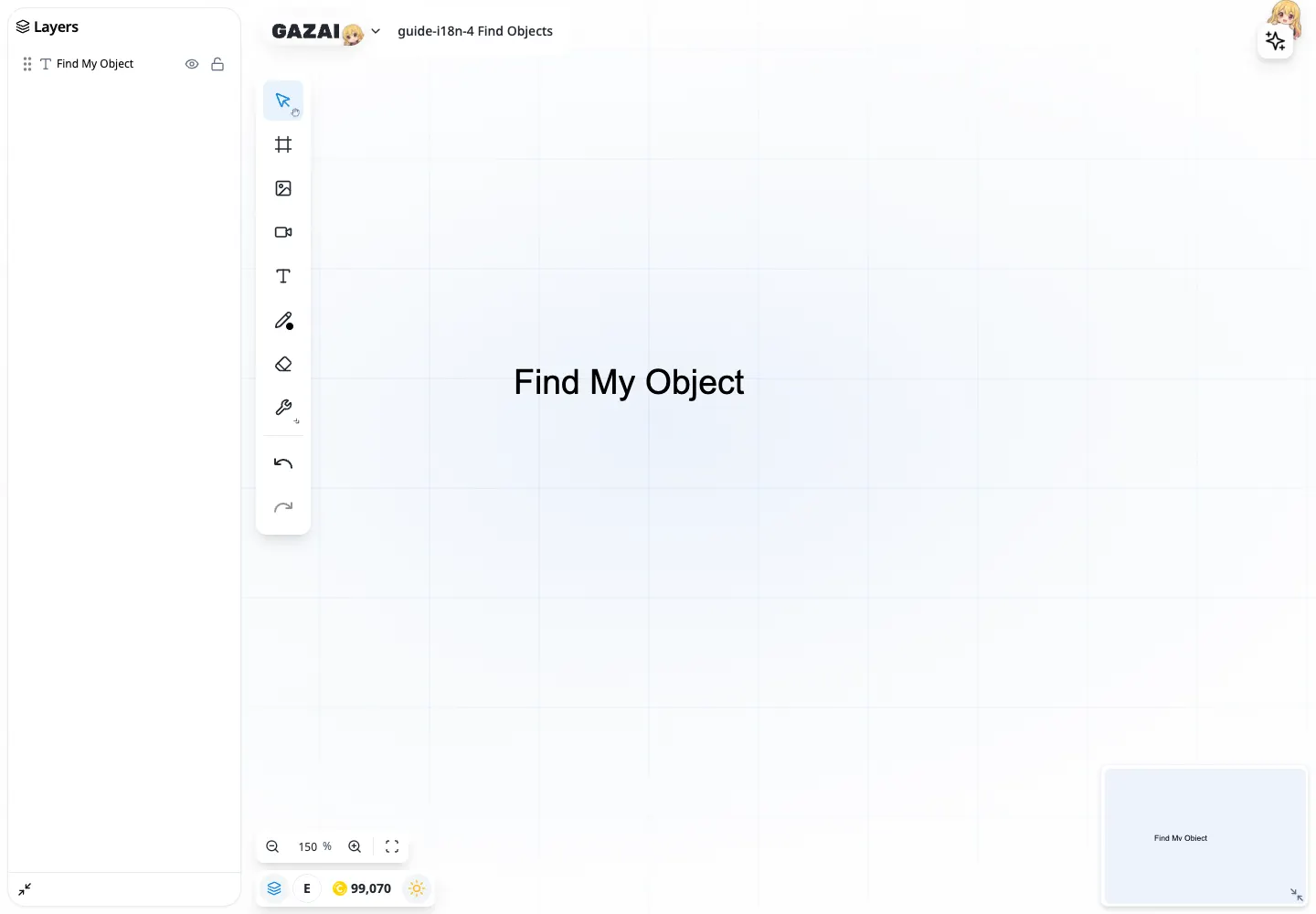
Step 4: Trick 2, open the layer panel to find your object
Click the stacked icon at the bottom left and the "Layers" panel opens on the left. Every object on the canvas is listed here, including the text you just added, named "Find My Object".
Click the object you're looking for in the list and the matching item on the canvas gets selected. If the list is long, scroll down. If the object sits inside a frame, remember to expand that frame first.
Step 5: Trick 3, part 1: can't see the object? Check the eye
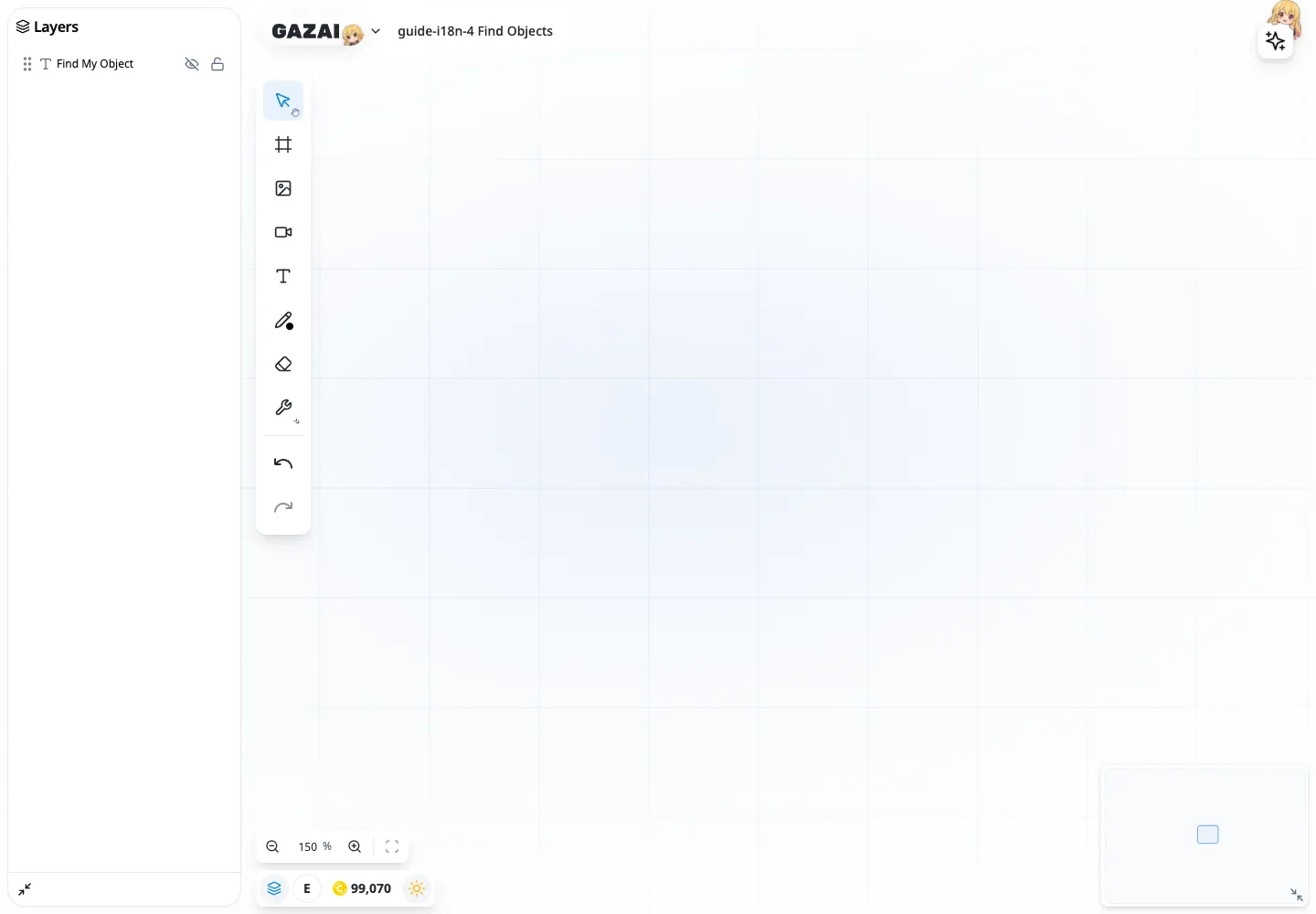
Find the eye icon on the right of the object's row. A line through the eye means the object is hidden. Click it to show the object again, then press "Show all" to bring it back into view.
The image below shows hidden text: it's still in the layer list, but you can't see it on the canvas. There's no need to add it again, just click it back on!
Step 6: Trick 3, part 2: object won't move? Check the lock
You can see the object but can't drag it? Check the lock at the far right of the same row. If the lock is closed, click it to unlock, then switch back to the "Select / Pan" arrow tool (V) on the left, select the object, and drag away.
The eye controls whether you can see an object, and the lock controls whether you can edit it, so check them separately. When you're done, you should be able to find the object in the layers, see it on the canvas, and select and move it once it's unlocked.
🛠️ Stuck? Check here first
- Shortcuts aren't working?If you're typing text, press Esc to leave editing first, then use the shortcut.
- Deleted something by accident?Try ⌘/Ctrl + Z to undo.
- Can't find it in the layer list either?Make sure you've opened the right canvas. If you have a lot of work, go back to "My canvases" and search for its name.