
✨ What will we do here?
Your video is ready, so of course you want to show it off! This article picks up fromGenerate your first video on the Video Generation pageorGuide Seedance with reference images, videos, and audio, and walks you through publishing your finished video as an artwork.
It's simple: play the video through once, then give it a name and a short description.
🚀 Follow along, step by step!
1. Open your video generation history
After logging in, go toVideo Generationand find a finished video in your generation history.
If you have a lot of history, type a keyword into "Search prompts..." above it, or use the dropdown next to it to narrow things down by time: "All", "Today", "This Week", or "This Month". If a video is still processing, wait until it's done before you publish.
2. Open the video and play it
Click the result card to open the details window, then play it and check the character, action, and camera. You can also compare the prompt and model settings on the right to make sure this is the one you want to share.
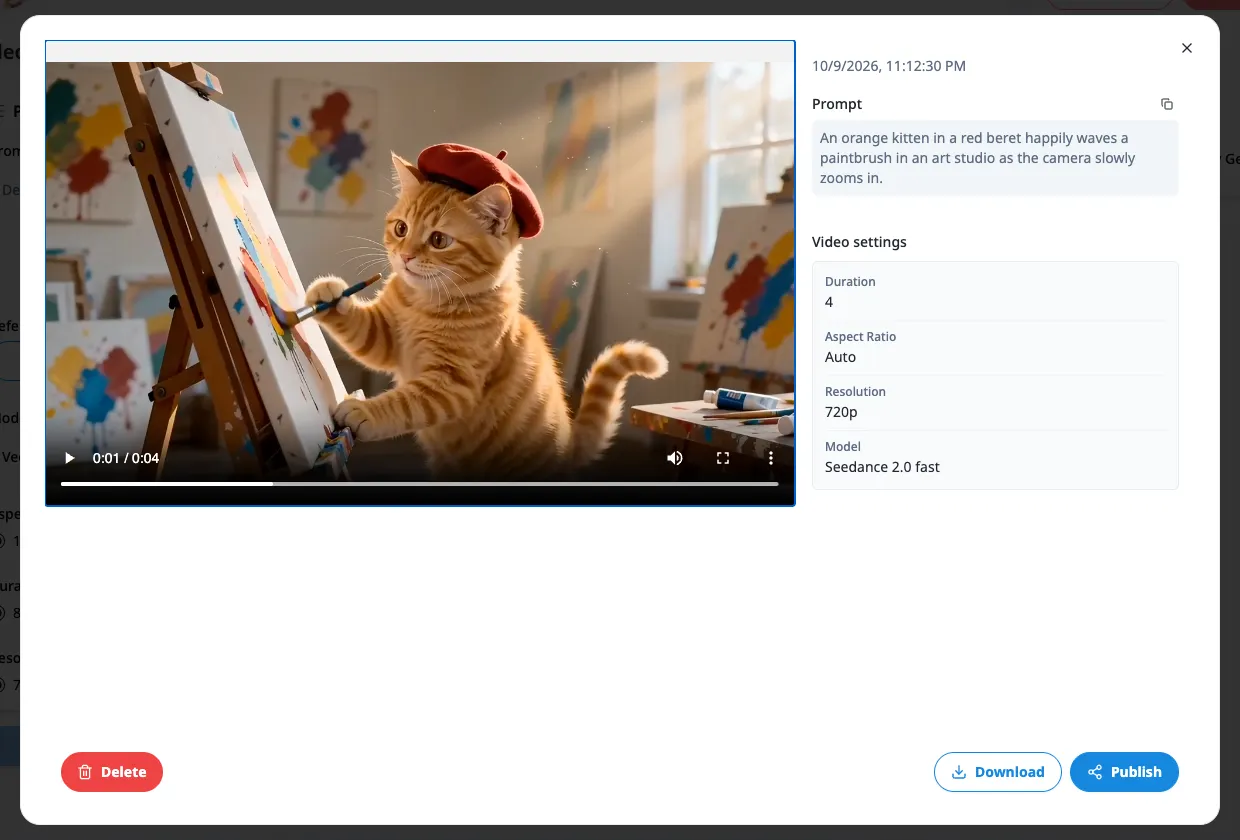
3. Click "Publish" in the bottom-right corner of the details window
Clicking "Publish" opens the artwork details window. Take a quick look at the video preview to make sure it's the right one, so you don't publish the wrong video.
Quick reminder:For videos, "Publish" is in the video details window, which isn't where it is in the output area of the image generation page.
4. Let AI help fill it in, then check the details
The publish window fills in the artwork name, description, and tags for you. When you see "AI is working its creative magic...", wait a moment.
Once it's filled in, edit it to fit your video. Pay special attention to any action or story the AI wrote, and check that it really happens in your video.
- Artwork name: Required. For example, "Afternoon Hello from a Kitten by the Window".
- Description: You could write "In the warm sunlight, a kitten slowly raises its paw." You don't have to keep all of the AI's wording.
5. Tidy up the tags, then click "Publish"
Check that the tags fit your theme and style, and click the "×" to remove any you don't need. When you're happy with the preview, artwork name, and description, click the blue "Publish" button in the bottom-right corner! Once it's published, you can get the artwork link from the share window.
6. Find your video on the home page
Close the share window and click the GAZAI logo to return to thehome page. Scroll down to "Explore Inspiration", then switch to "Video" or search for your artwork name. Open it and play it once more to make sure everything looks good.
Quick reminder:Don't see it right after publishing? Refresh the page first. Don't publish it again, or you could end up with duplicates.
🙌 Your turn!
Pick your favorite video, write its little story, and go find your artwork on the home page after you publish it!
Go to Video Generation and publish my artwork
🛠️ Stuck? Check here first
Can't find the "Publish" button? Check these three things:
- Account: You're logged in to your own account.
- Video status: The video has finished generating.
- History: You've opened your own generation history.