✨ What will we explore?
Finished something you're proud of on the canvas? Picking up fromCreate together with GAZAI Chan, this article shows you how to turn an image on your canvas into a public artwork for everyone to see!
This article covers publishing from the canvas. To publish from the image generation page, seePublish Your Artwork from the Image Generation Page.
🚀 Follow along, step by step!
1. Open your canvas and select the image to publish
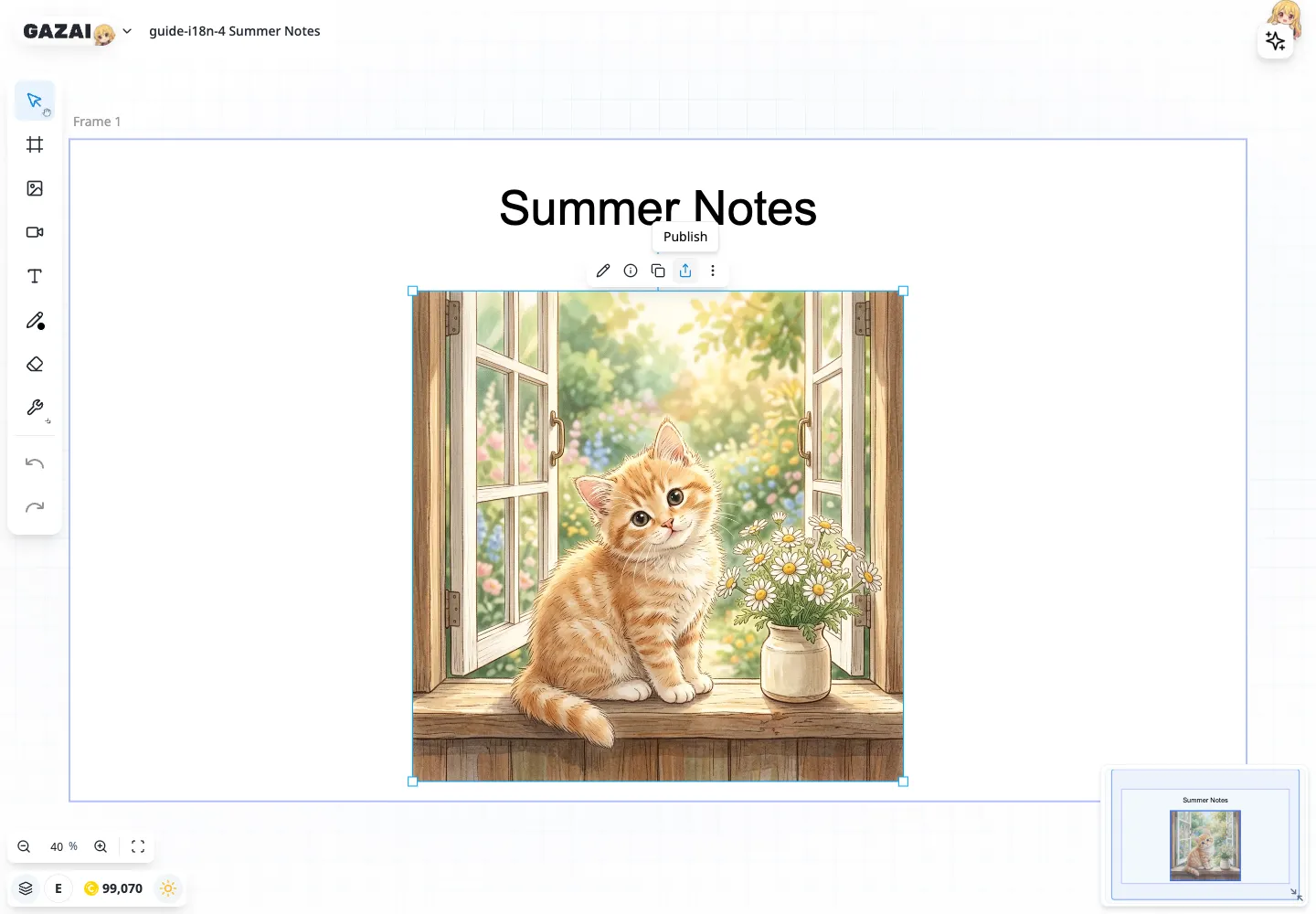
Open your work fromMy canvasesand click the image you want to publish. You'll see the image's selection box and a floating toolbar.
Quick tip:Can't find the image? Open "Layers" at the bottom left to select it, then move your view over to it.
2. Click "Publish" on the image toolbar
Hover over the share icon, and when the tooltip says "Publish", click it. The left side of the window shows the image you're about to publish.
Wrong image in the preview? Just cancel, go back to the canvas, and select again.
3. Wait for AI to write the name, description, and tags
Once the window opens, AI fills in your artwork details automatically. If you see "AI is working its creative magic...", give it a moment.
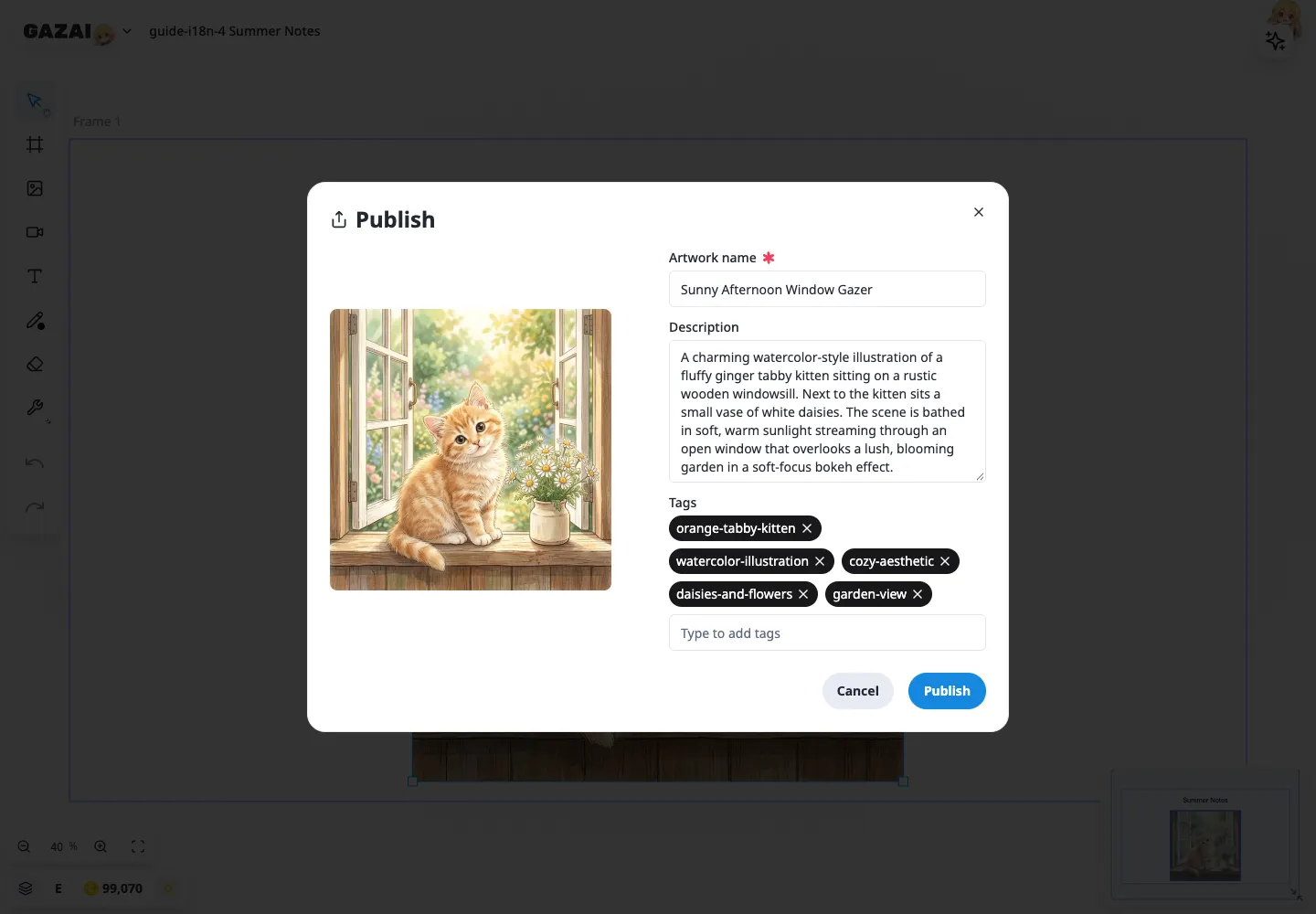
When it's done, read through each field: delete anything that doesn't match the image, then add your own creative thoughts. Your introduction will have much more personality!
4. Check the fields and what will be public
- Artwork name: Required, so make sure there is one.
- Description and Tags: You can edit both. Press the "×" next to a tag to remove it.
- Preview on the left: Take one more look. When you publish a single image, nearby text and other images aren't combined into a full layout.
5. Want to share the full layout? Select a "frame" instead
To make multiple images, text, and a background public together, a frame is the way to go!
- First, arrange everything inside the frame.
- Cancel the current publish window, select the frame instead, and click "Publish" on the frame's floating toolbar.
- When the preview appears, make sure everything in the frame is showing, then check the details AI filled in.
For help arranging what's in your frame, seeAdd text to your canvasandLay out your work in a frame and download it as an image.
6. Press "Publish" at the bottom right of the window
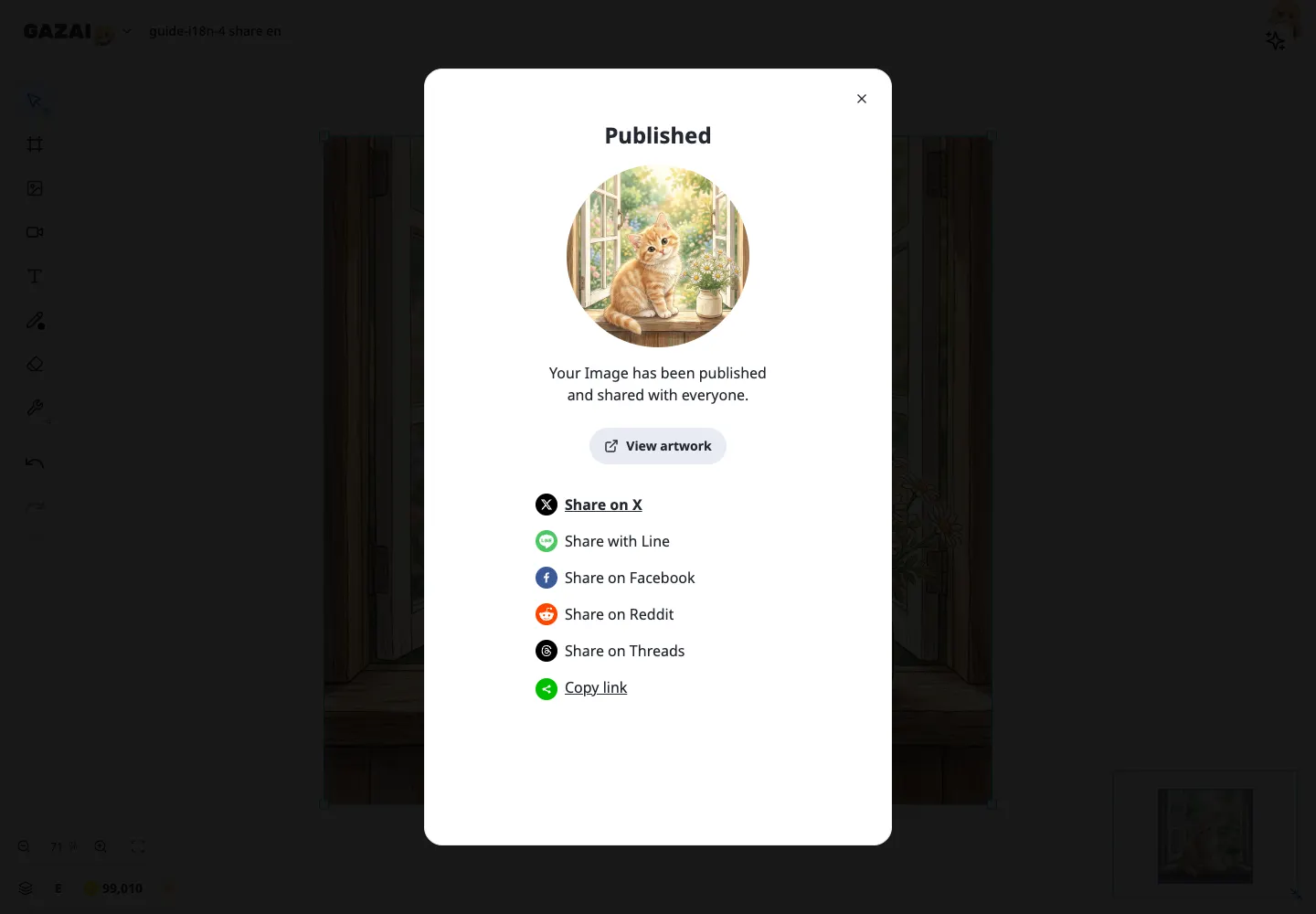
Preview, name, and details all look good? Press the blue "Publish" button! Once it succeeds, a share window pops up where you can copy your artwork's link right away.
Pressing "Cancel" just exits this publish attempt and takes you back to the canvas.
7. Go back to the home page and find your artwork
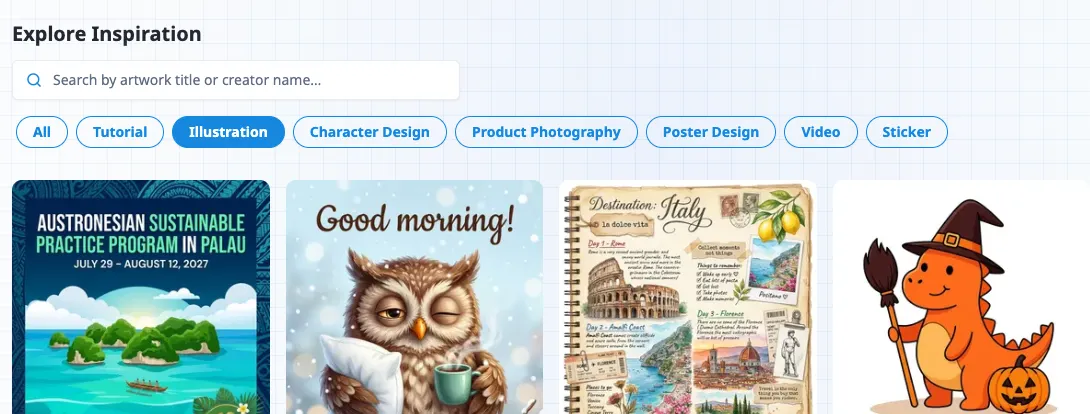
Close the share window, click the GAZAI logo to return to thehome page, and scroll down to "Explore Inspiration". Search by your artwork's name or your creator name, then open the card to check that the image and name are right.
Quick tip:Don't see it right after publishing? Refresh the page first. Don't rush to publish again, or you may end up with a duplicate.
🙌 Your turn!
Pick your favorite image on the canvas, or put a full layout in a frame, write your introduction, and publish! Then head back to the home page and see your artwork on the wall!
Go to My canvases and publish my artwork
🛠️ Stuck? Check here first
- Can't find the publish icon: Make sure you've selected an image or frame, and only one thing to publish at a time.
- Text is missing from the preview: Publish with a frame instead.
- AI didn't fill in the details: You can absolutely fill in the name, description, and tags yourself.
- Publishing failed: Read the error message first, and check whether it actually went through.