✨ What will we play with?
Have you readCreate Your First Image on the Image Generation PageorAdd Reference Images to Show What You Mean? Next, let's publish your image as an artwork! This guide starts from the output area of the "Image generation" page. Canvas and AI Tools each have their own publishing guides.
We'll follow the same image, "Little Orange Cat by the Afternoon Window", through choosing the image, letting AI help fill in the details, publishing, and finding your artwork on the home page.
🚀 Follow along, step by step!
1. Choose the image to share
After logging in, openImage generation. Click the one you want to publish under "History" on the right, and check that "Output" above shows the correct version. If the image is still generating, wait for it to finish first.
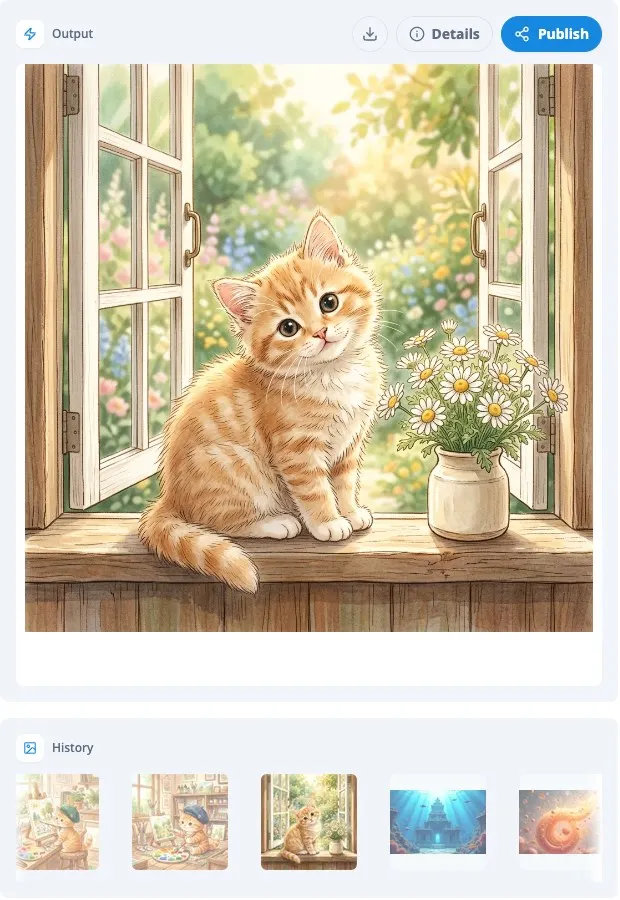
2. Click "Publish" and let AI fill it in
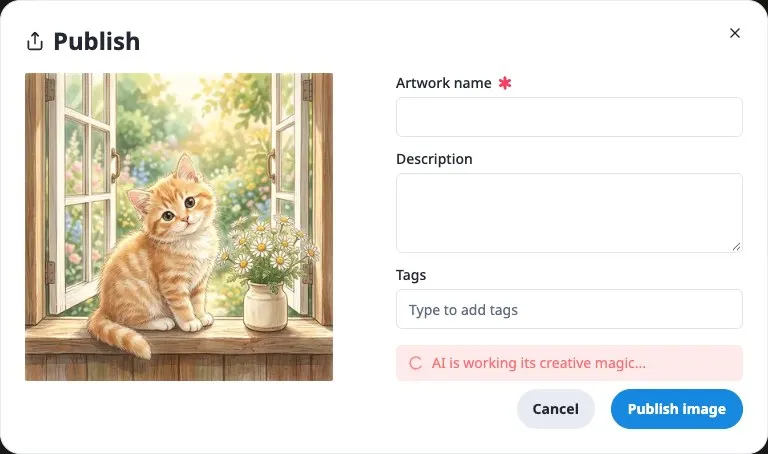
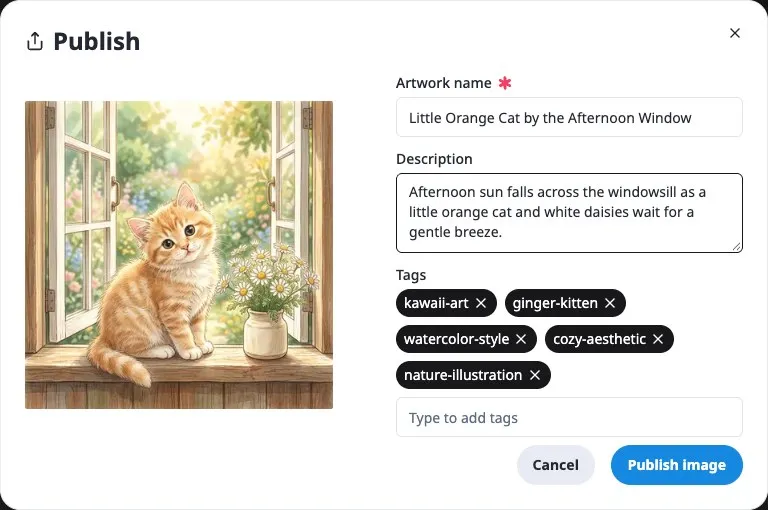
Click "Publish" in the top-right corner of the output area to open the artwork window. The left side previews the image you're about to share, and the right side has the artwork name, description, and tags.
As soon as the window opens, AI looks at the image and fills these in for you. There's no separate button to find. When you see "AI is working its creative magic...", wait until the fields are filled before editing them.
3. Read the name and description, then make them your own
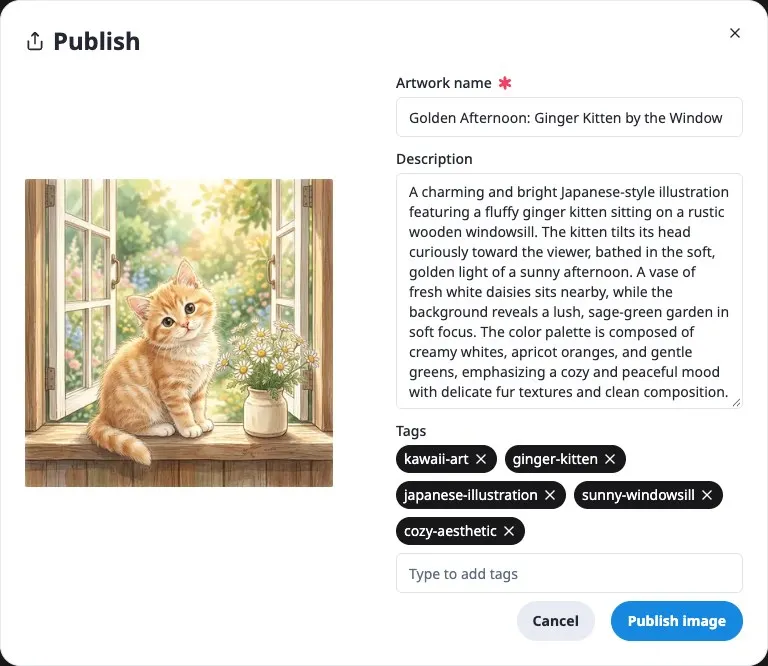
When AI is done, look over "Artwork name" and "Description". The artwork name is required, and you can click the field to change it. In the description, add your creative ideas, or delete anything AI guessed wrong that isn't really in the image.
For example, you could name it "Little Orange Cat by the Afternoon Window" and write, "Afternoon sun falls across the windowsill as a little orange cat and white daisies wait for a gentle breeze." AI's suggestions are only a starting point, so feel free to change them!
4. Tidy up the tags and check the preview again
See whether the tags fit your image:
- Remove a tag:Click the "×" next to any tag you don't want.
- Add a tag:Enter your own keywords in "Type to add tags".
Finally, look at the preview on the left once more to make sure it's the right version, and that the text and materials are suitable to share.
5. Click "Publish image" and get your artwork link
When everything looks good, click "Publish image" in the bottom-right corner of the window. Please wait for it to finish and don't click repeatedly! When it succeeds, a share window appears where you can copy the artwork link. If you're not ready yet, click "Cancel" to go back.
When you see "Published", publishing is complete, and you can click "View artwork" or "Copy link".
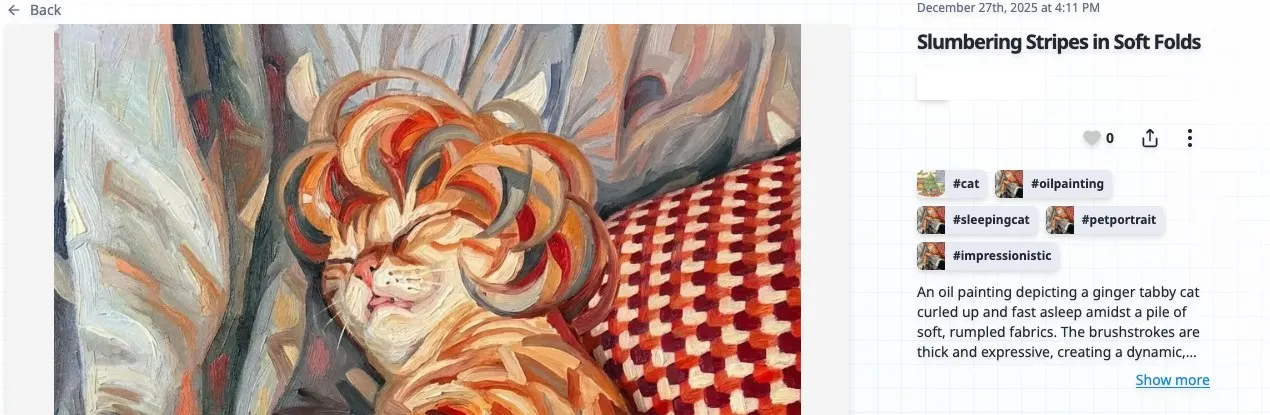
The artwork page shows the name and description you entered. Open the link to check it once more.
6. Go back to the home page and find your artwork
Close the share window and click the GAZAI logo in the top-left corner to return to thehome page, then scroll down to "Explore Inspiration". Your new artwork will appear among the artwork cards. Open the card to check the image, artwork name, and creator.
If there are lots of artworks, enter your artwork name in "Search by artwork title or creator name…".
Tip:If you don't see your new artwork right away, refresh the page instead of publishing it again.

🙌 Your turn!
Pick a favorite image from your generation history, let AI write a first draft, then change it into your own voice. After publishing, go back to the home page and find your artwork!
Go to Image generation and publish my artwork
🛠️ Stuck? Start here
- Can't publish:A required field may be empty. Fill in what the screen asks for and try again.