
✨ What will we do here?
Let's get things moving! Start with one simple action and a short shot, hand your text or image to a video model, then fine-tune it until the pacing feels right.
🚀 Follow along, step by step!
- OpenVideo Generation. This time we'll generate from text alone, so there's no need to prepare a reference image.
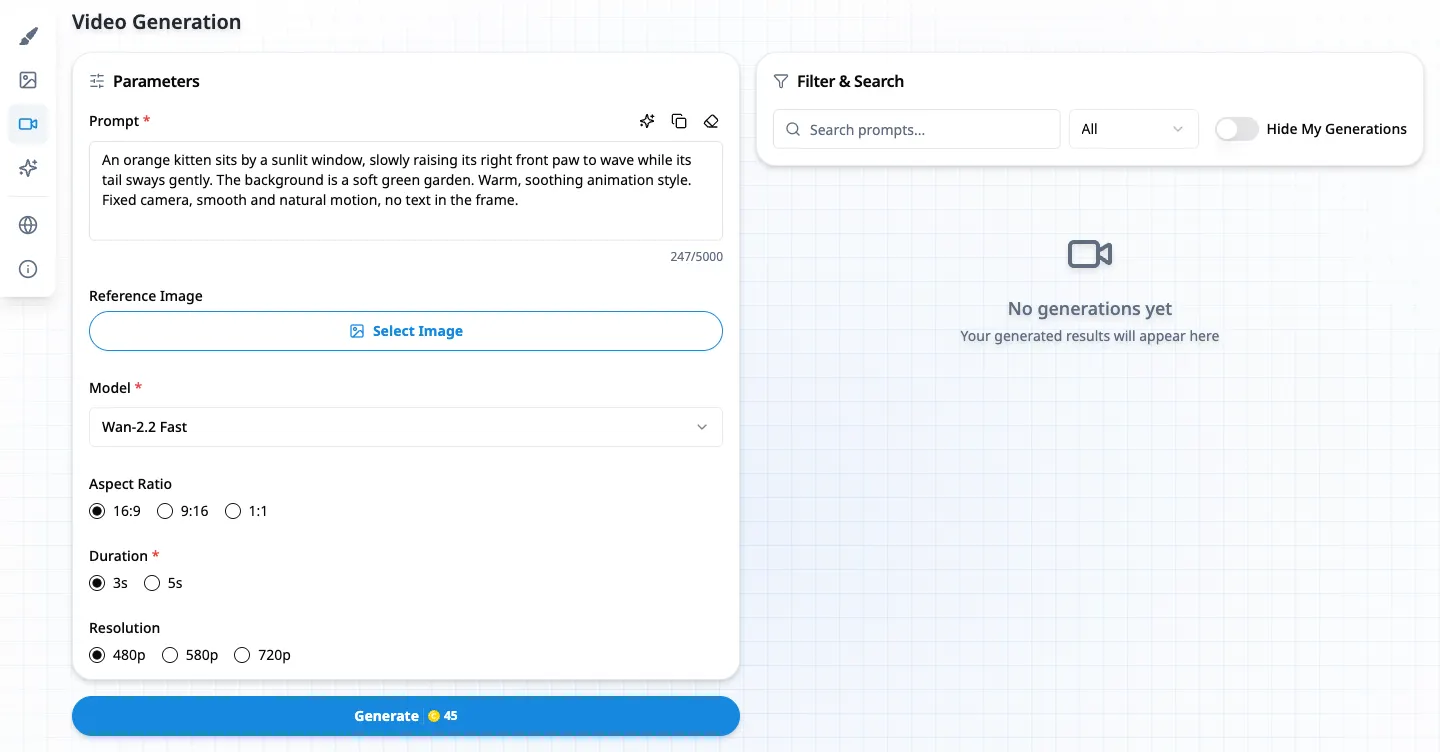
- Under "Model", chooseWan-2.2 Fast. Then set "Aspect Ratio" to16:9, "Duration" to3s, and "Resolution" to480p. This setup came to45 tokenswhen we tried it, so it's a great low-cost way to practice!
- Paste the sample below into the "Prompt" field. For your first try, one simple action is plenty. Just be clear about the character, setting, action, and camera.
An orange kitten sits by a sunlit window, slowly raising its right front paw to wave while its tail sways gently. The background is a soft green garden. Warm, soothing animation style. Fixed camera, smooth and natural motion, no text in the frame. - When the button shows "Generate 45", click it once.
Quick reminder:The token cost changes with the model and settings, so check the number on the button before you submit.
- Wait for your video to finish in the generation history on the right. While it says "Processing", hang tight and don't submit it again! If your history is getting long, type "An orange kitten sits by a sunlit window" into "Search prompts..." to find this one.
- When it's done, click the video to play it. See how well the character's motion, background, and camera match your prompt, then decide what to adjust next time.
💡 How do I change the prompt?
The sample is built like this: "orange kitten (main character) + sunlit window (setting) + raises a paw to wave (action) + fixed camera (how it's shot)".
The first time you edit it, change only the main character or the action, such as "a puppy gently nods". That makes the difference easiest to spot.
Want to bring your own image to life? Under "Reference Image", click "Select Image" to add it, then pick a model that supports image input. Each model has different required fields, so just fill in what appears on screen. When you're using an image, check the token cost once more before you submit.
🖼️ Compare with your screen
① Fill in the prompt and choose the model
The prompt goes in the "Prompt" field on the left. Below it, check Wan-2.2 Fast, 16:9, 3s, and 480p, plus the 45 tokens on the button. After you submit, your new video appears in the history on the right and shows "Processing" until it's ready.
② Once it's done, open the video and check it
Here's a real result from a different model, Seedance 2.0 fast, made with a different cat prompt, so your kitten will look different. When your video is finished, click it to play it, and compare the prompt and model settings on the right.
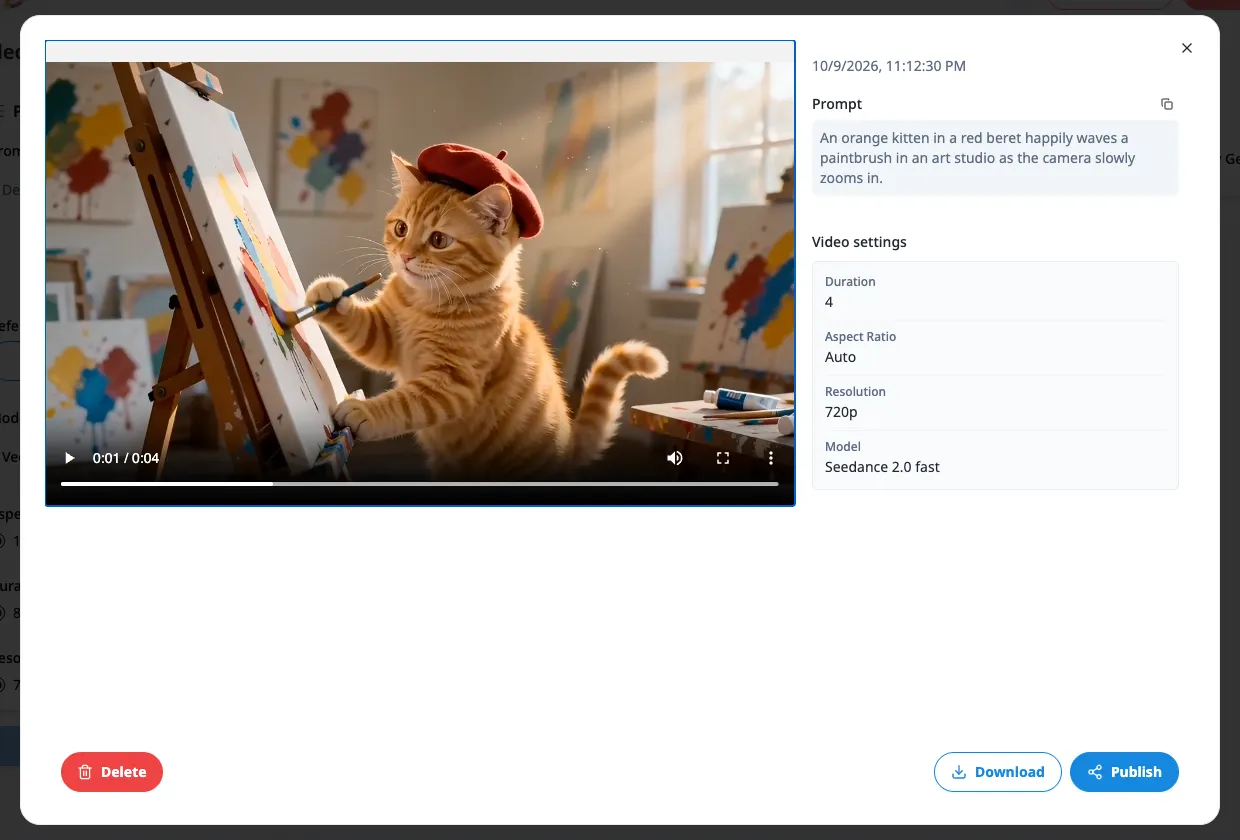
If your cat is by the window and doing what you asked, the main action worked and you've passed this exercise!
You may also notice the picture looks fairly realistic, not as "animated" as you might have imagined. That's common: the AI tends to get the character and action right first, and style can take a few tries. Next time, describe the style in more detail, like "2D Japanese-style animation, clean lines", or try another model.
🛠️ Stuck? Check here first
- Your options look different: Each model offers its own durations, resolutions, and input types, so go by the options you see on screen.
- Not enough tokens, or a required field is missing: Follow the on-screen message to sort it out, then submit.
- Still in the queue or processing: Give it time to finish, and don't submit the same request again.