
✨ What are we playing with today?
Want to remove a background, change the style, or work with your own assets? Come browse AI Tools! Narrow things down with keywords and categories to find the right helper for your next creation.
🚀 Follow along, step by step!
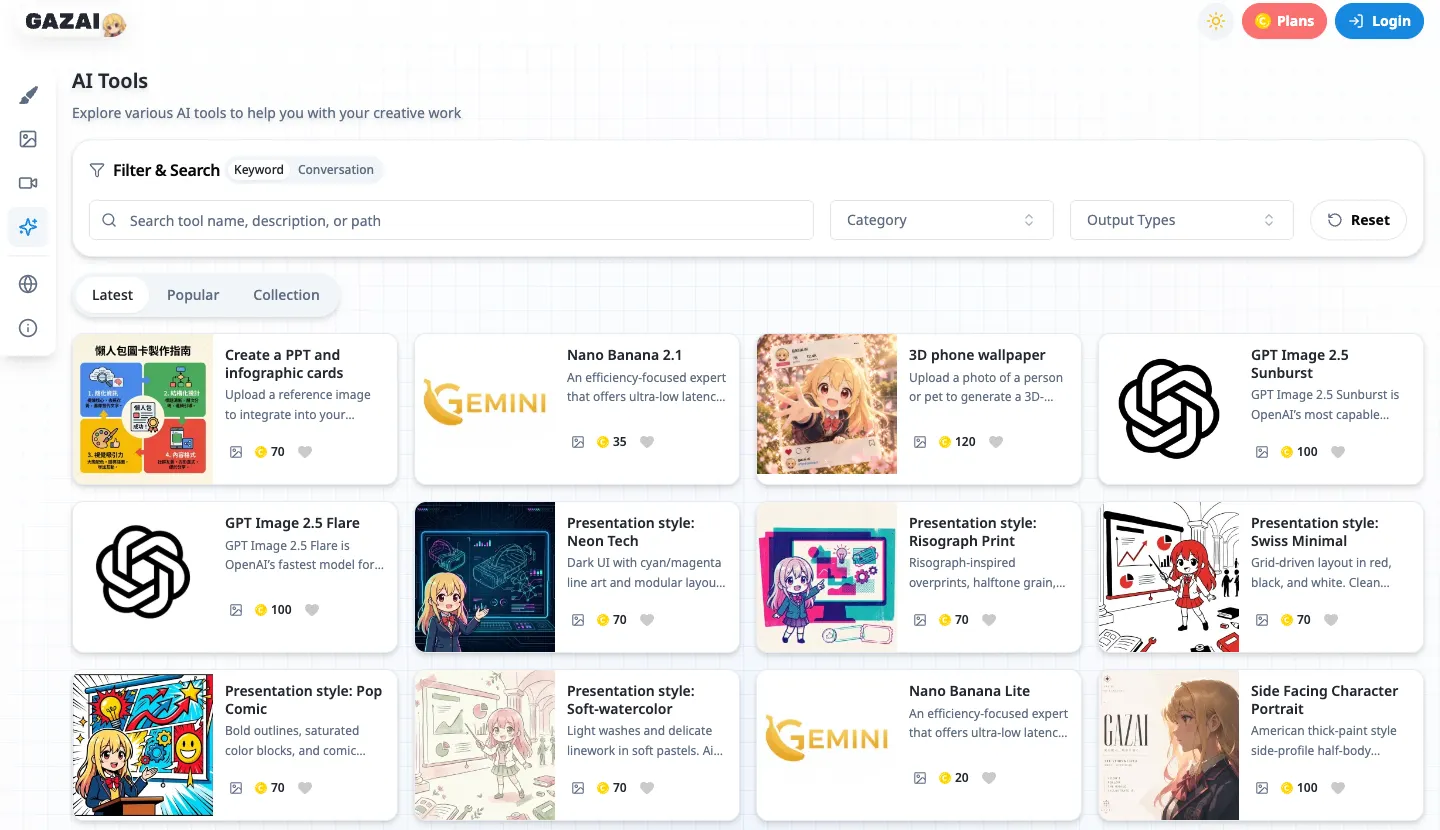
- Open "AI Tools" from the navigation: every tool lives here.
- Search with a keyword: type a tool name or the effect you're after, such as "Remove Background".
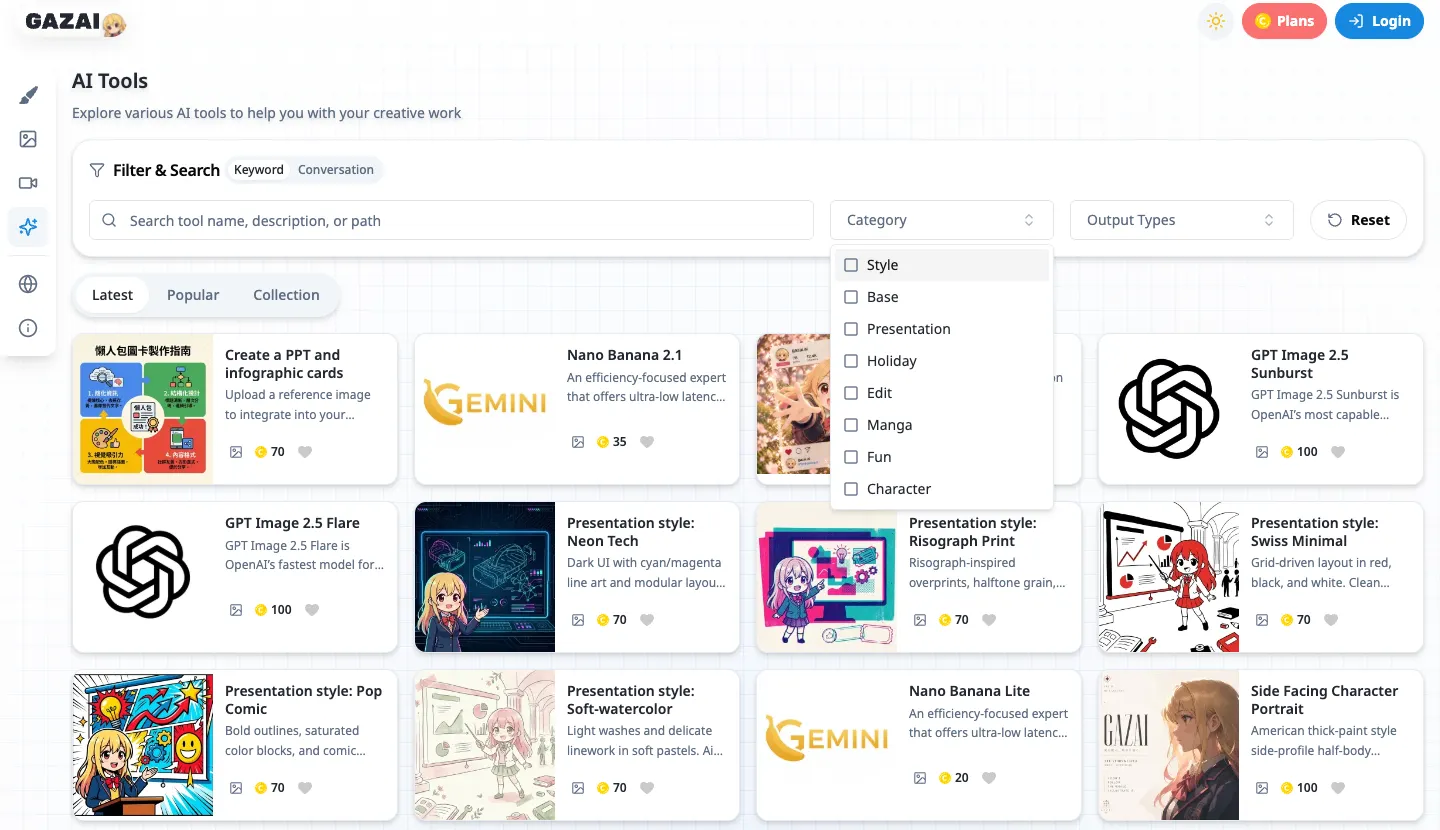
- Want more precise results? Open "Category": check the type of creation you have in mind. You can combine it with "Output Types" to narrow things down further.
- Switch tabs to change the list: use the "Latest", "Popular", or "Collection" tab to see different tool lists.
- Open a tool card: take a look at the tool's description, the fields to fill in, and how many points it costs to run.
- Want to browse everything again? Click "Reset": all your filters are cleared at once.
🧭 Which categories can I browse?
There are eight categories right now: "Style", "Base", "Presentation", "Holiday", "Edit", "Manga", "Fun", and "Character". Not sure where to start? Try this:
- Want a new art style: start with "Style".
- Making slides or info cards: browse "Presentation".
- Working on an image: look in "Edit".
- Character design or manga: check out "Character" and "Manga".
- Looking for theme ideas: explore "Holiday" and "Fun".
- Choosing a generation tool: pick from "Base".
🖼️ Check it against the screen
🛠️ Stuck? Start here
- No search results: try fewer keywords, or clear your filters and search again.
- Not sure a tool is right for you: a tool's inputs and outputs can be images, video, or text, so check they match what you need before you start.