
✨ What are we playing with today?
Turn the key points in your head into a clear presentation card! Pick the tool, write a prompt, set the aspect ratio and resolution, then download it and add it to your slides.
This time we'll use "Create a PPT and infographic cards". The image it makes can go straight into PowerPoint or Google Slides. Get your topic and a few key points ready, and let's begin!
🚀 Follow along, step by step!
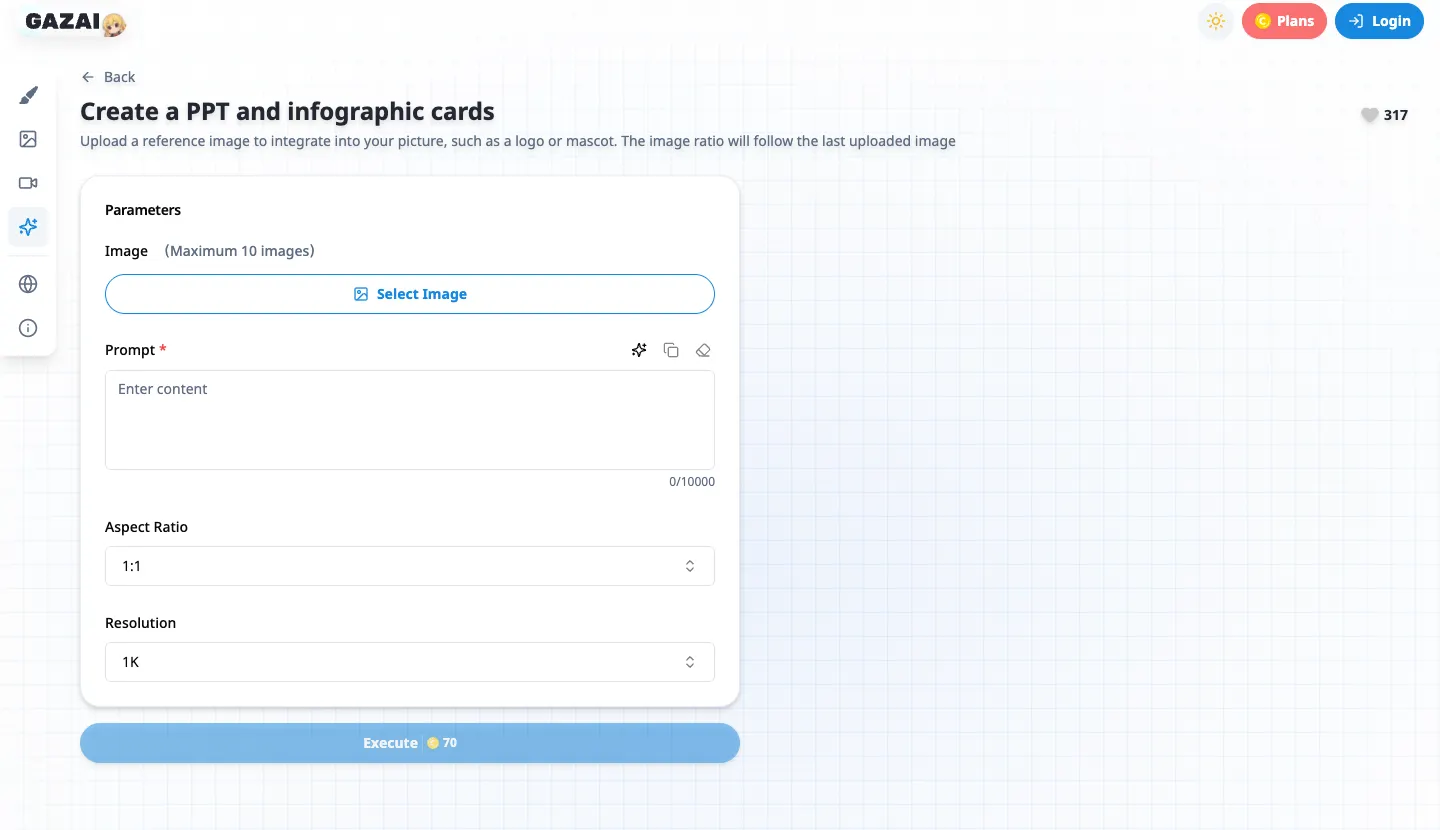
- Open the tool: log in to GAZAI, go to "AI Tools", then search for and open "Create a PPT and infographic cards".
- Decide on your topic, audience, and purpose: for example, "Introduce the creative process in three steps to people using GAZAI for the first time." The shorter the text, the better. One card only needs one topic.
- (Optional) Add reference images: want to include a brand or character? Click "Select Image" to add reference assets, up to 10 images, and say clearly in your prompt which elements to keep. You can also start from text alone, as this example does.
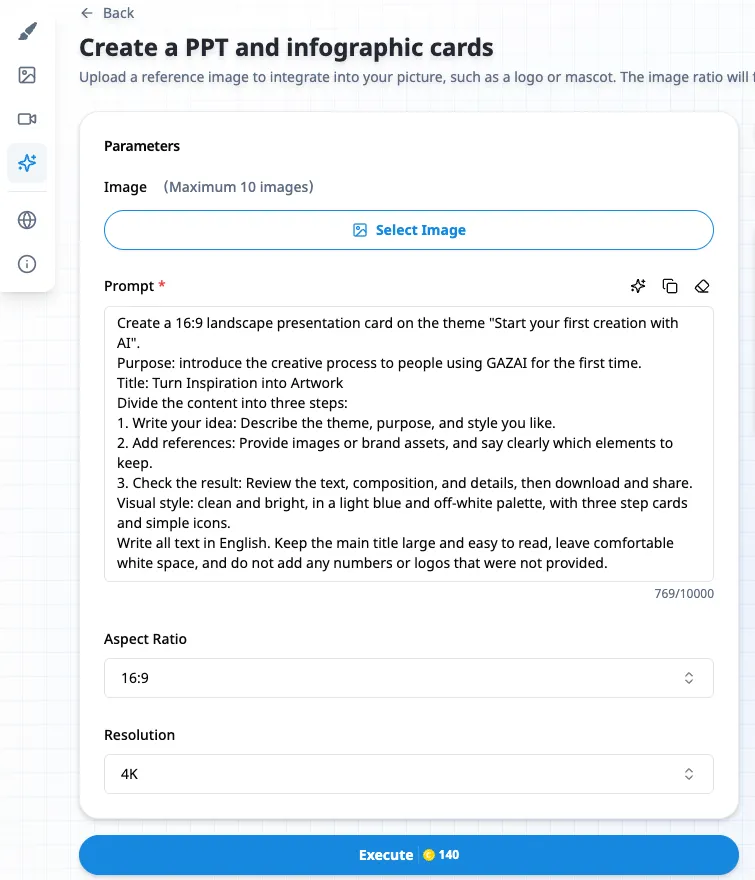
- Write your prompt: in the required "Prompt" field, write the title, the text for each section, the colors, and the layout you have in mind. You can use up to 10,000 characters. There's a sample below you can adapt!
- Choose an "Aspect Ratio": pick 16:9 for landscape slides, or a ratio like 9:16 for a vertical social media card. Remember to change the ratio written in your prompt to match.
- Choose a "Resolution" and run it: you can pick 1K, 2K, or 4K. This example uses 4K, which makes the text and details easier to check. Check the points shown on the "Execute" button and your balance, then click it once to start generating.
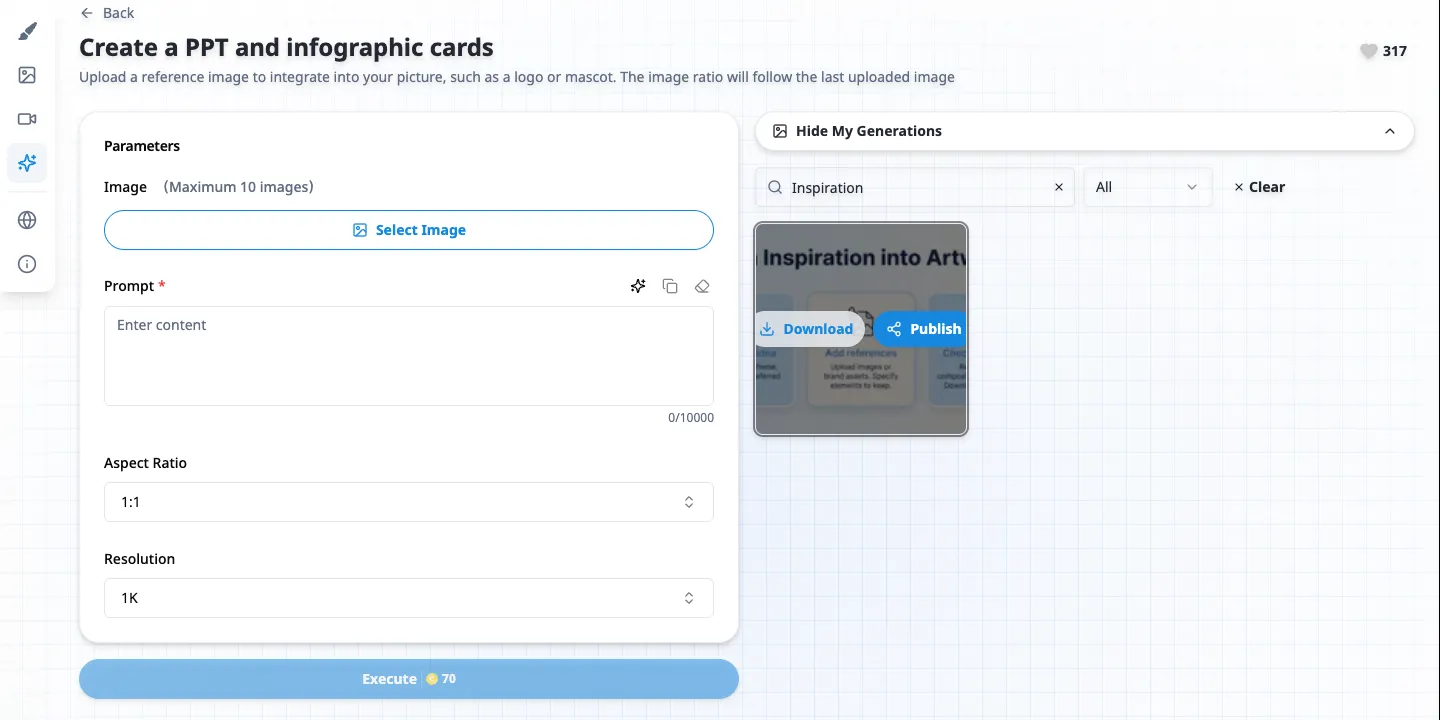
- Wait for your result: it appears in your generation history on the right when it's done. Please don't click "Execute" again while it's processing. Even if you leave the page, you'll find your history when you come back to the same tool.
- Open the result and check it: make sure the text, order, and composition are right. To adjust something, edit your prompt and run it again.
- Download it and add it to your slides: hover over the result card, click "Download" to save the image, then insert it into PowerPoint or Google Slides. The text is part of the image, so to change the wording, edit your prompt and generate again.
✍️ How to write your prompt: try one first!
Swap in your own topic, title, and three steps to make cards for all kinds of uses. List the exact text you want on the card, rather than just writing "make me a slide".
Create a 16:9 landscape presentation card on the theme "Start your first creation with AI".
Purpose: introduce the creative process to people using GAZAI for the first time.
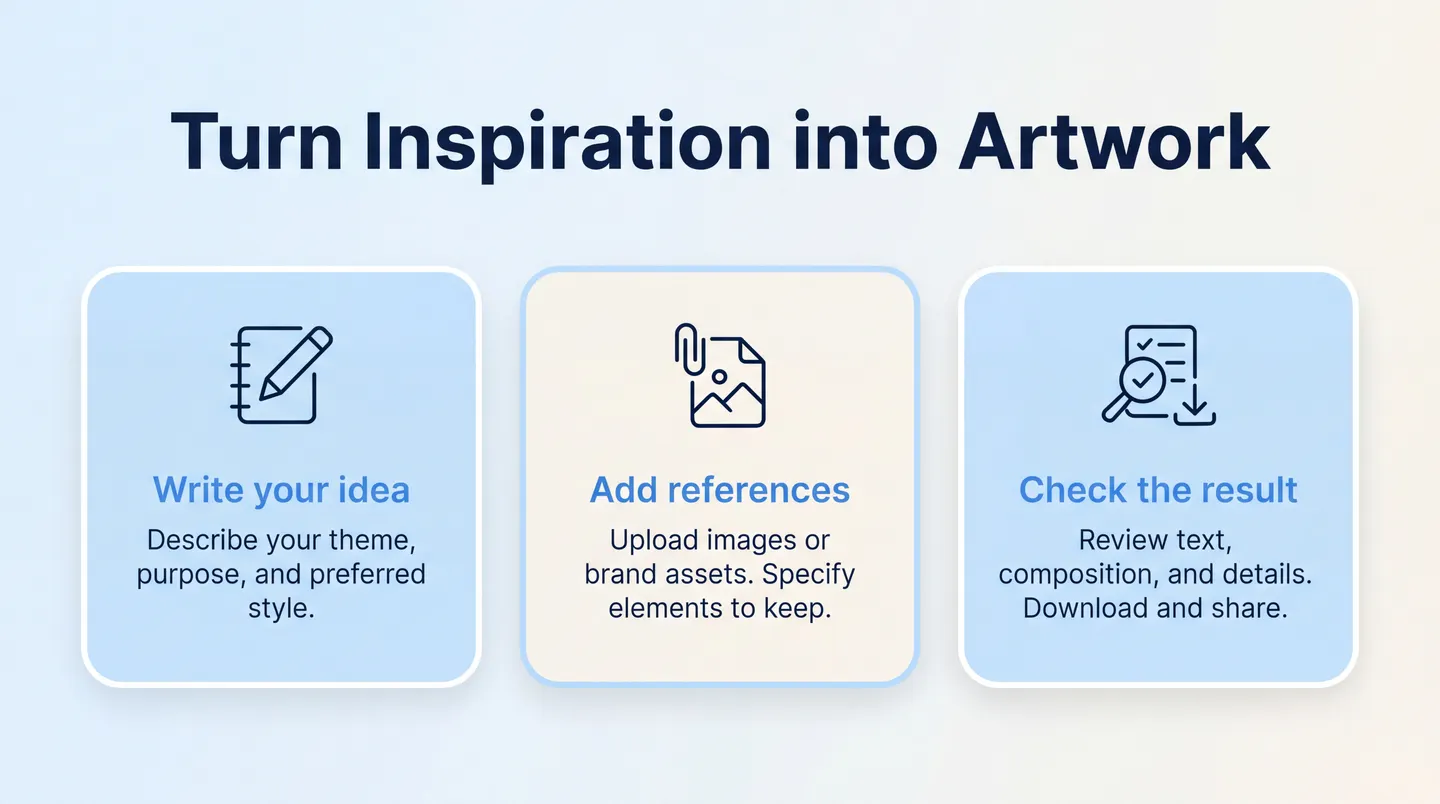
Title: Turn Inspiration into Artwork
Divide the content into three steps:
1. Write your idea: Describe the theme, purpose, and style you like.
2. Add references: Provide images or brand assets, and say clearly which elements to keep.
3. Check the result: Review the text, composition, and details, then download and share.
Visual style: clean and bright, in a light blue and off-white palette, with three step cards and simple icons.
Write all text in English. Keep the main title large and easy to read, leave comfortable white space, and do not add any numbers or logos that were not provided.
🖼️ Check it against the screen
🛠️ Stuck? Start here
- Can't click "Execute": make sure your prompt is filled in, your images have finished uploading, and you have enough points.
- Too many reference images: reduce them to 10 or fewer.
- Generation failed: read the error message and adjust as it suggests. Please don't run it again while it's still processing.
- Typos in the text: AI-generated text can still contain mistakes. Check proper nouns, numbers, and brand names carefully.
- Too crowded: cut some words, split it into several cards, or add "make the title larger and use only one sentence per section" to your prompt.