✨ What will we explore?
Think of a frame as a sheet of paper: arrange your text and images inside it, and whatever it surrounds becomes your artwork. Once everything's in place, pick a format and size, and you can download the whole frame as a single image!
🚀 Follow along, with a screenshot for every step
The images below are screenshots of the real thing. First, get a piece of text and an image ready on your canvas. SeeAdd text to your canvasandAdd images to your canvas: upload or generate with AIfor help.
01 | Create a frame
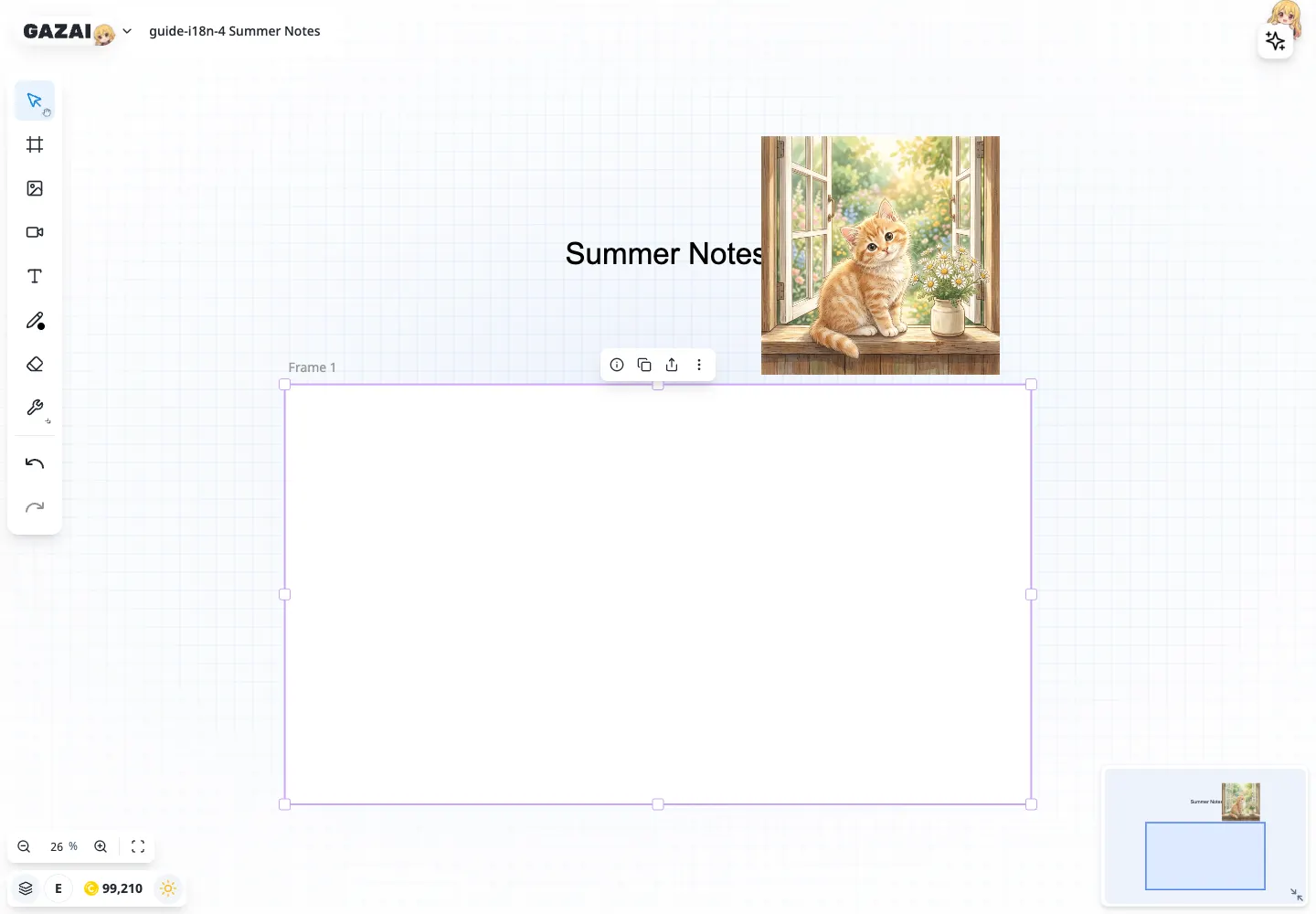
Click the hash-shaped "Add Frame" icon on the left (shortcut: F). Then switch back to the select tool (V), drag an empty part of the frame over near your work, and drag the handles on its edges to adjust the area.
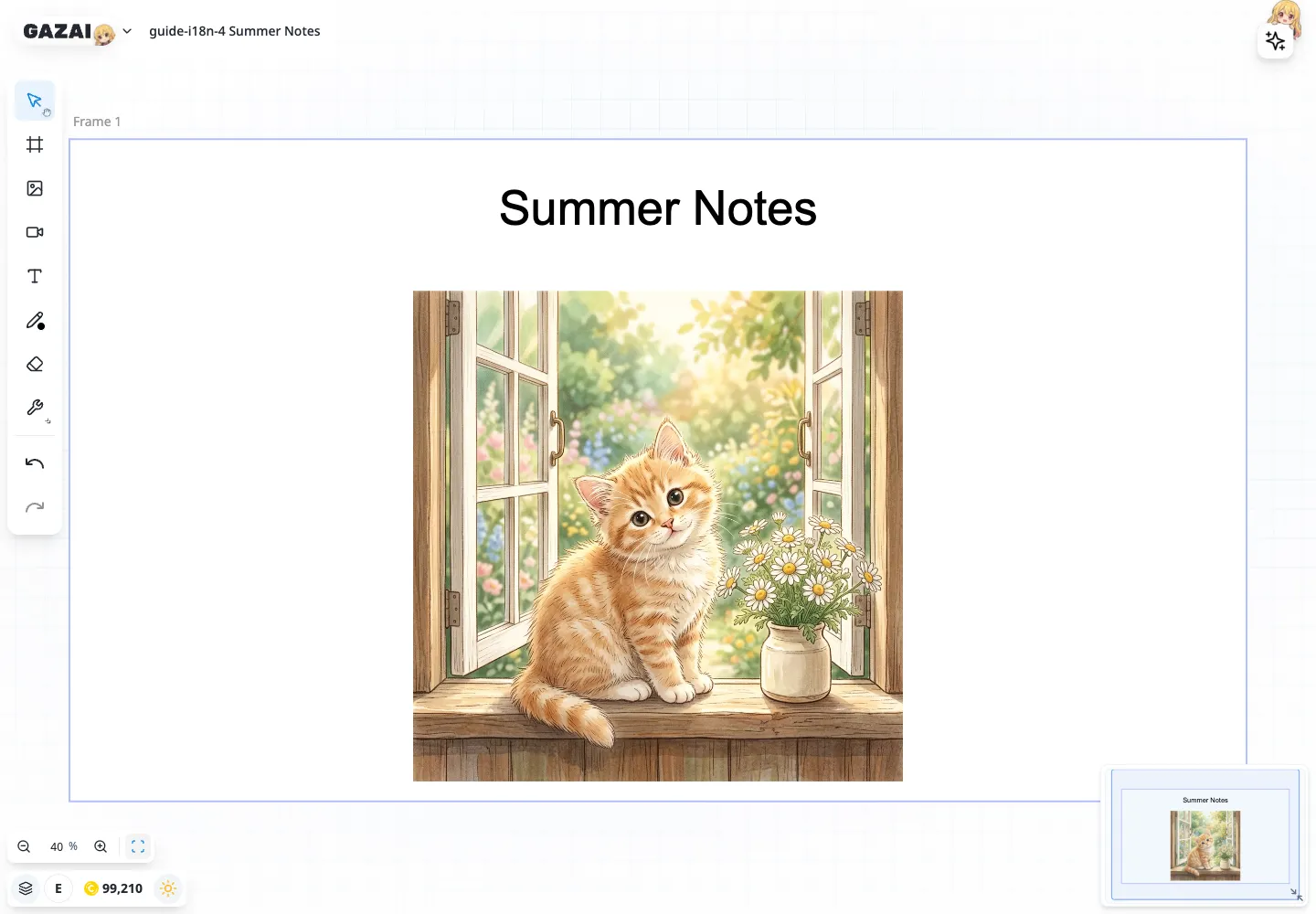
You'll see:A white rectangle named "Frame 1". This is the area that will be exported.
02 | Move the text into the frame
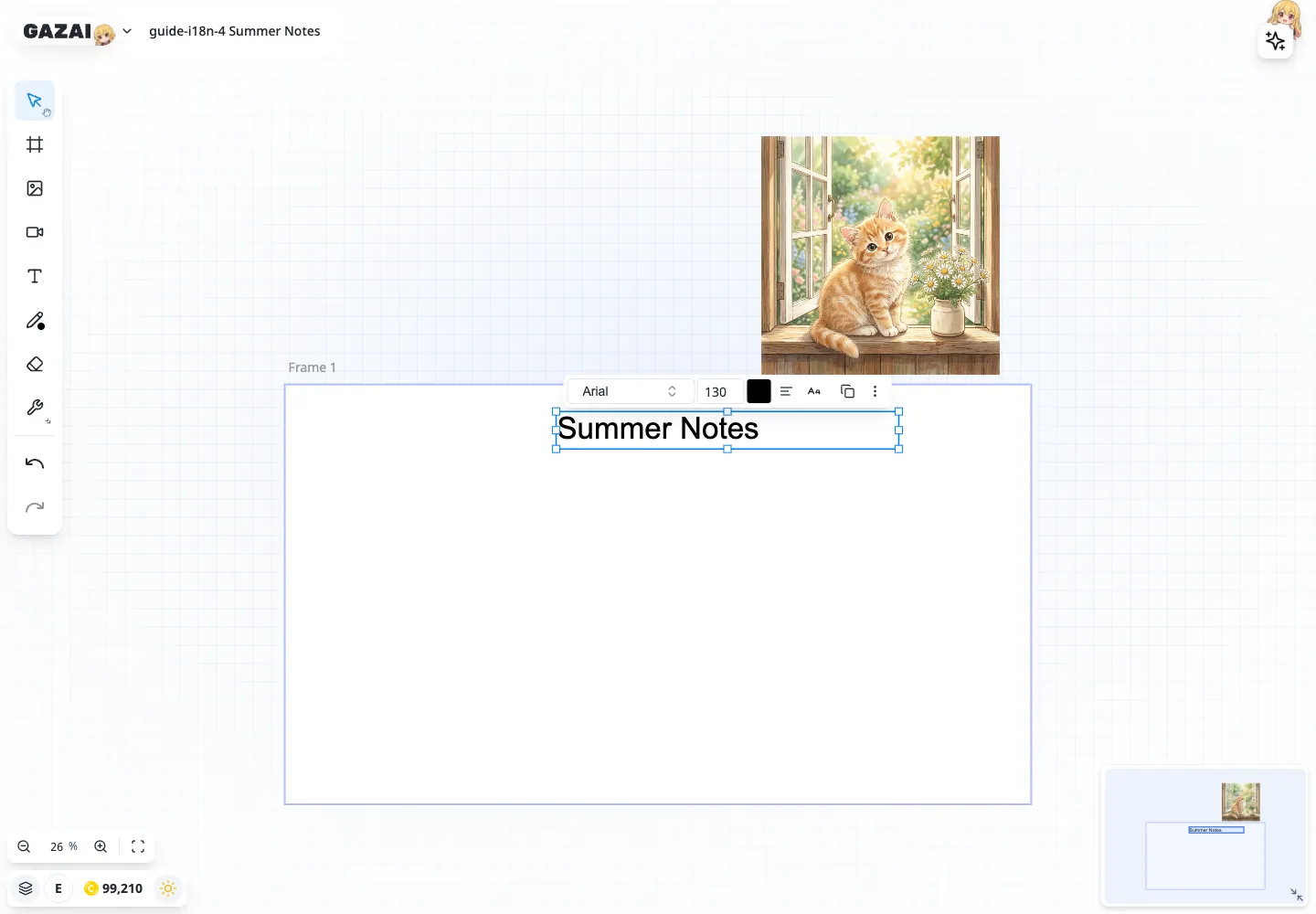
With the select tool, drag the text itself to place the title near the top of the frame, leaving a little space around it.
You'll see:The title sitting neatly inside the white frame. Dragging an object itself moves it, while dragging a handle resizes it.
03 | Arrange the image in the frame
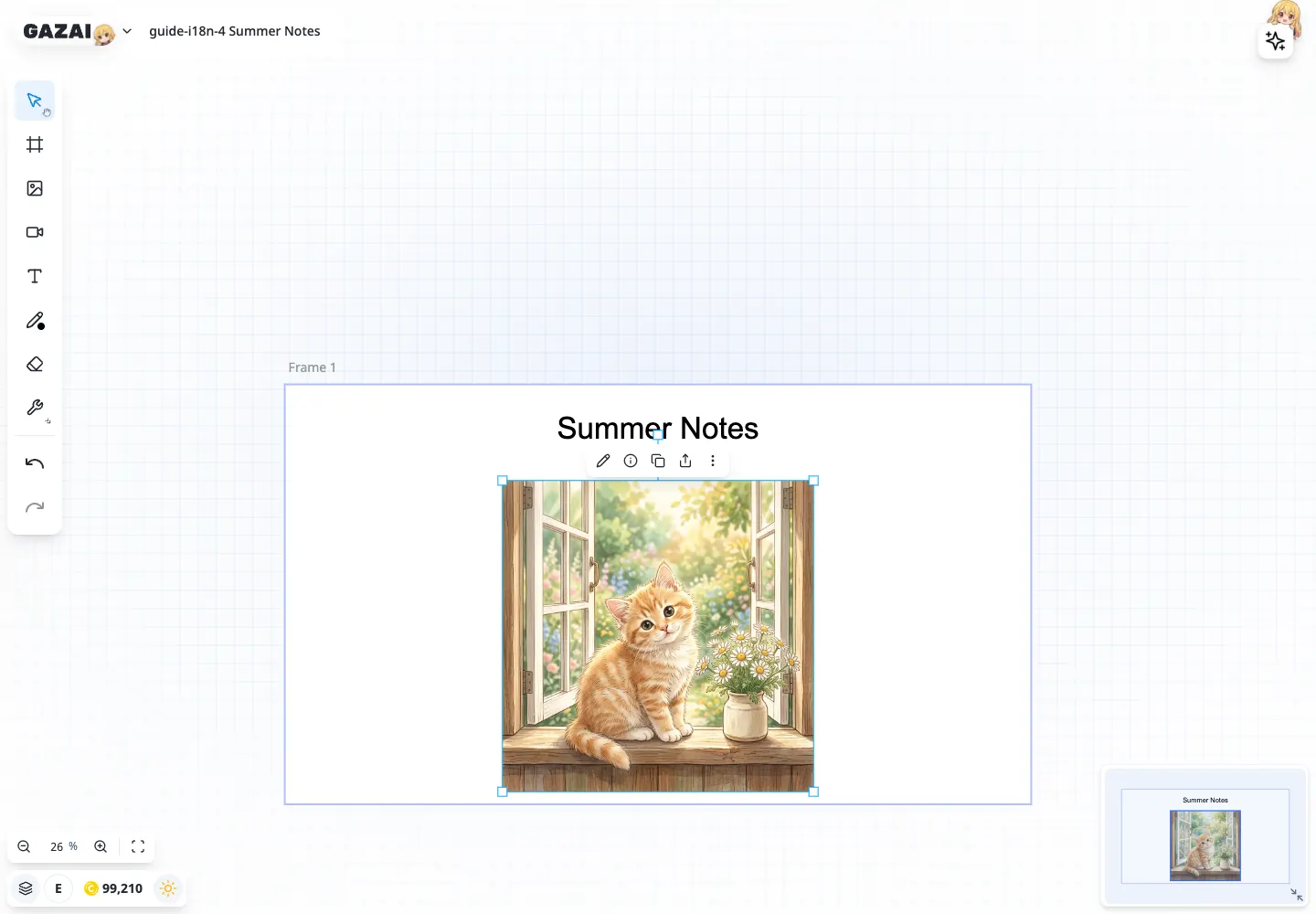
Click the image, drag a corner handle to resize it, then drag the image itself to just below the title. Click an empty part of the canvas to see how it all looks.
You'll see:The title and image are both inside the frame, with comfortable spacing between them.
04 | Do a final check before downloading
Close any panels you don't need and make sure that:
- The titleis clear and easy to read
- The imageis complete and not cut off
- All contentis inside the frame, and no layers you need are hidden
05 | Open the download panel
Click the frame directly. If it's hard to click, you can also click the frame's name in the layer list. On the frame toolbar, open "More" and choose "Download".
06 | Choose a format and size, then download
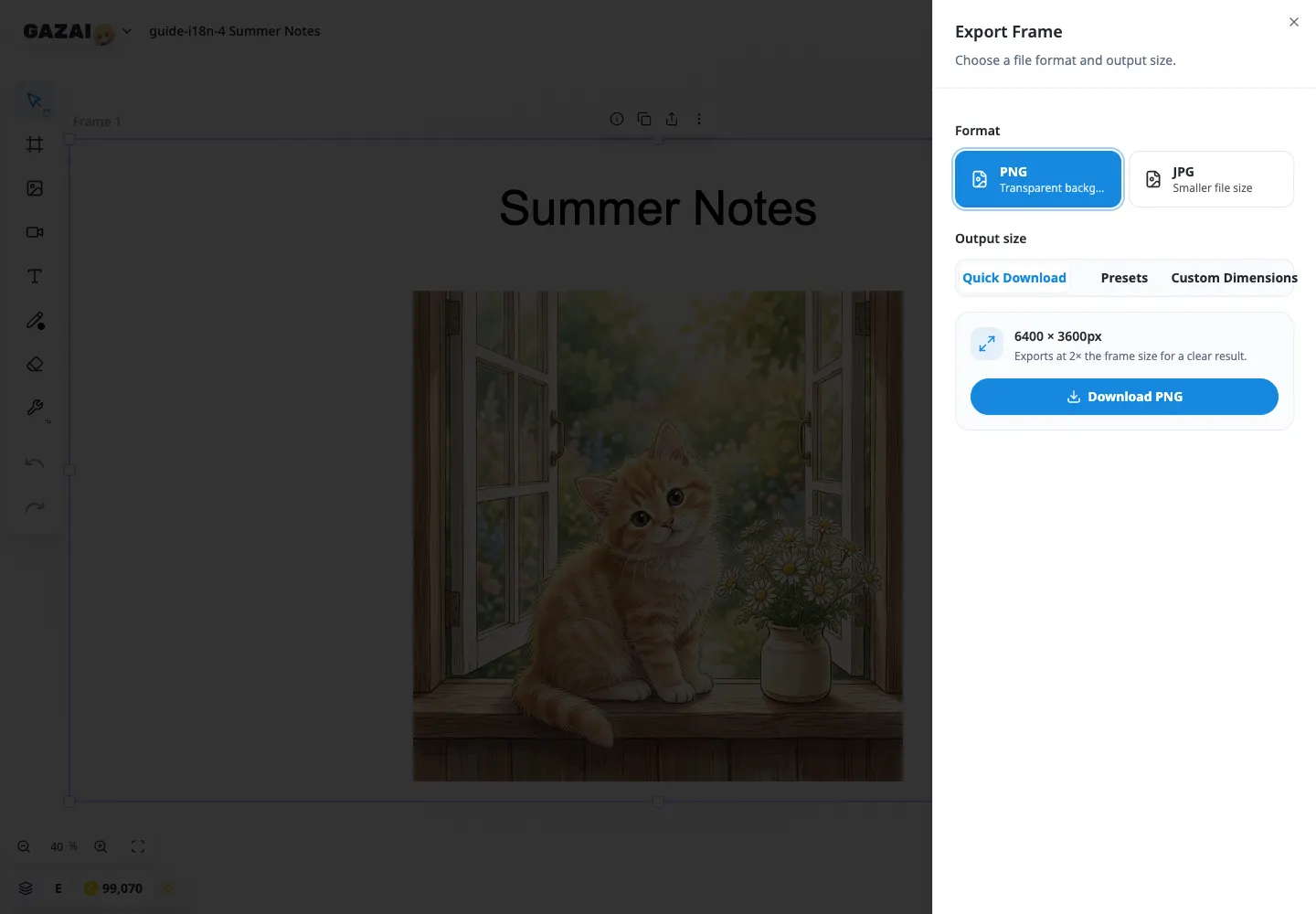
- Choose a format: In the "Export Frame" panel, choose PNG or JPG. PNG can keep a transparent background, while JPG files are usually smaller.
- Choose a size: Pick "Quick Download", "Presets", or "Custom Dimensions" as needed, and check that the output size shown on screen looks right.
- Download: Press the download button and you'll find the file in your browser's downloads folder.
🙌 What's next?
Your piece is all laid out. Want everyone to see it? Continue withPublish images and frames from your canvasto publish your frame straight to the home page.
🛠️ Stuck? Check here first
- Something's missing from the image?Make sure every object is inside the frame and no layers you need are hidden.
- The download failed?Read the error message first, check whether your browser blocked the download, then try again.
- Want a different aspect ratio?Resize the frame first, rather than just stretching the image.
- Dragged something to the wrong place?Press ⌘/Ctrl + Z to undo and ⌘/Ctrl + Shift + Z to redo.